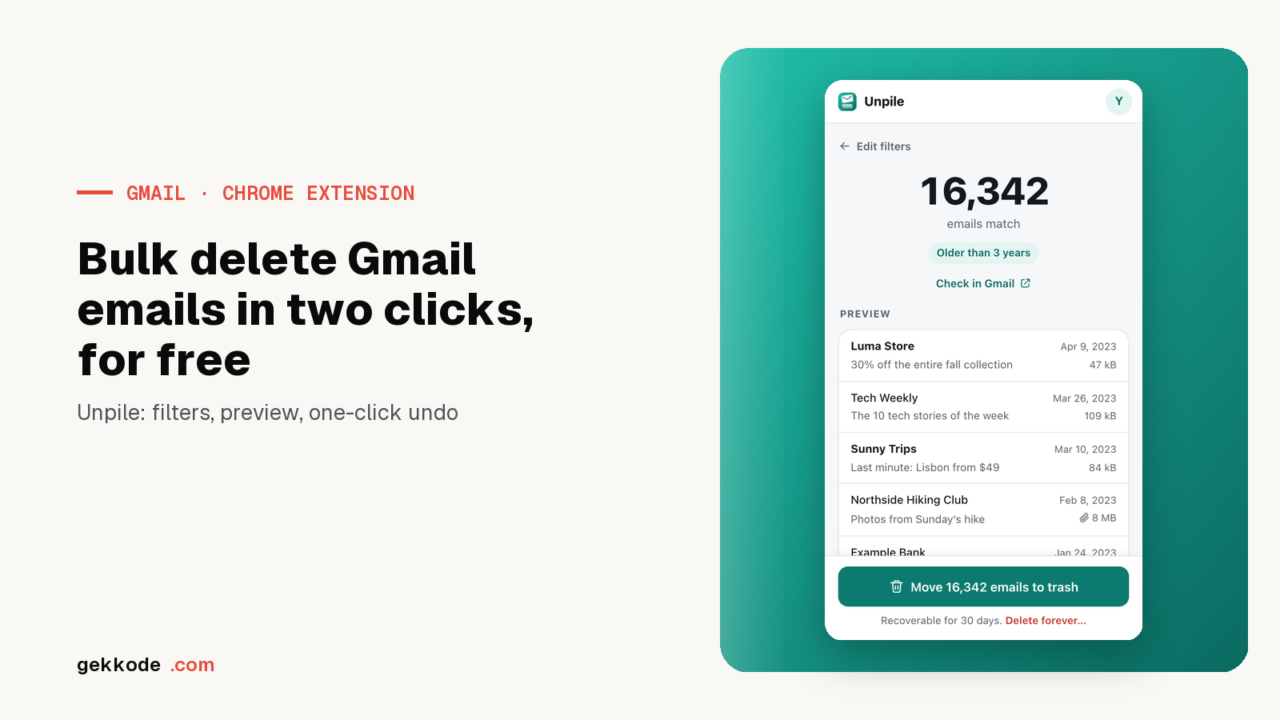
To bulk delete emails in Gmail, search for the messages you want in Gmail (for example older_than:3y), tick the select box, choose to select all conversations, then click the bin. Unpile, a free Chrome extension, does the same in two clicks, with filters by age, sender or size, the exact number of emails, a preview and a one-click undo.
A free Google account comes with up to 15 GB, shared between Gmail, Drive and Google Photos, and Google’s help page warns that a full account may stop sending and receiving emails. Gmail can delete thousands of old messages at once, and Unpile, a free Chrome extension, does it in two clicks.
Unpile is free.
Free, no sign-up, no ads, from the Chrome Web Store. For Google Chrome on a computer.
I built Unpile myself, just as I built Email Impact. The extension is free, with no ads and no paid version. Gmail is a trademark of Google LLC, and Unpile is neither affiliated with Google nor endorsed by Google.
How to bulk delete emails in Gmail without installing anything
In Gmail on a computer, the method described in Google’s help takes three steps. Open the inbox or the label you want to empty, tick the select box at the top left, then click the link that appears above the list to select all conversations, not just the ones on the page you can see. One click on the bin finishes the job.
To aim accurately, the Gmail search bar understands special keywords, called operators, which filter messages like a sieve. Here are five of them, taken from the official list of search operators:
| What to type in the Gmail search bar | What Gmail finds |
|---|---|
older_than:1y | messages more than a year old |
from:newsletter@example.com | everything sent by that address |
larger:10M | messages larger than 10 MB |
category:promotions | the Promotions tab |
has:attachment older_than:2y | attachments more than two years old |
The method works, as long as you remember these operators and trust the counter. With conversation view, Gmail’s default setting, the number shown counts threads, and a single thread can contain several messages.
Unpile, a free Chrome extension to clean up Gmail
Unpile installs from the Chrome Web Store and opens in Chrome’s side panel, the column that unfolds on the right of the page. The panel stays open while you browse, Gmail included. Six quick clean-ups cover the most common cases:
- promotions older than six months
- social network notifications older than three months
- messages in the Updates tab older than a year
- emails larger than 10 MB
- emails you never opened, older than a year
- all emails older than three years
For everything else, the custom filters turn Gmail’s operators into menus. You pick a sender (a name, an address or a whole domain), words from the subject, an age from one week to five years, a category, whether there are attachments, read or unread messages, and a minimum size. Unpile writes the Gmail search for you and shows it under the filters, and a free-text field accepts any operator for those who already know them.
Delete thousands of Gmail emails in two clicks
- Install Unpile from its Chrome Web Store page, then click its icon in the Chrome toolbar. The panel opens on the right.
- Click “Connect my Google account”. Google shows its own authorisation window, where you need to tick access to Gmail.
- Choose a quick clean-up, for example “All emails, older than 3 years”, or build your own filters.
- Unpile shows the exact number of emails found and a preview of the first ten, with the sender, subject, date and size. The “Check in Gmail” button opens the same search in Gmail, so you can verify before acting.
- Click the “Move … emails to trash” button, which shows the number found.
You can close the panel, the clean-up carries on and its progress appears as a percentage on the extension’s icon. If it is interrupted, by Chrome restarting for example, it picks up on its own where it stopped. Unpile processes messages in batches of a thousand, up to 100,000 per run, and beyond that you just run the same search again. Emails that arrive during the clean-up are never touched, because the extension only handles the list drawn up at the moment of the search.
Trash or permanent deletion: what really frees up space
By default, Unpile moves messages to Gmail’s trash, where they can be recovered for 30 days. The “Undo: restore all” button puts them back where they were, with their labels.
The trash does have a drawback when the account is full. According to Google’s page on managing storage, items in the trash and in spam count towards your quota until they are permanently deleted. To get the space back straight away, Unpile offers “Delete forever…”. This permanent deletion only goes ahead after you type the word DELETE in a confirmation window, and it cannot be undone.
The safest route is to go through the trash first, use Gmail as normal for a few days, then empty the trash from Gmail once you are sure you will not regret anything.
Why Unpile is free
Unpile costs nothing because there is nothing for me to run. The extension has no server. It talks directly to the Gmail API, the official front door that Google opens to applications so they can read and organise the messages of an account, with the account holder’s permission. Your emails travel from Gmail to your browser and nowhere else, with no account to create, no tracking and no ads.
The only thing Unpile keeps is the list of identifiers from the last clean-up, so that it can resume or undo it. It stays in a storage space belonging to the browser, on the principle described in our guide to storing data in JavaScript, and disappears when you uninstall the extension.
Google’s window asks for full access to Gmail, worded as the right to read, compose, send and permanently delete your emails. It is the only Google permission that allows permanent deletion, hence the broad wording. Unpile neither composes nor sends anything, and its privacy policy details every use.
Unpile’s limits
- Unpile works in Google Chrome on a computer, version 116 or later, and not in the Gmail app on a phone.
- The interface is in English.
- The extension does not unsubscribe you from newsletters, it deletes what has already arrived.
- Messages already in the trash or in spam are not counted, unless you tick “Include spam and trash” in the advanced options.
- A single run handles 100,000 messages at most.
Key takeaways
- Gmail can bulk delete emails with its search and the select-all-conversations link, as long as you know operators such as
older_than:1yorlarger:10M. - Unpile, a free Chrome extension, builds those searches with menus, gives the exact number and a preview, then deletes thousands of Gmail emails in two clicks.
- The trash can be undone in one click but still counts towards your 15 GB for 30 days. Permanent deletion frees the space straight away.
- Unpile works without a server, without ads and without a paid plan, and your emails never leave your browser.
Unpile is free.
Free, no sign-up, no ads, from the Chrome Web Store. For Google Chrome on a computer.