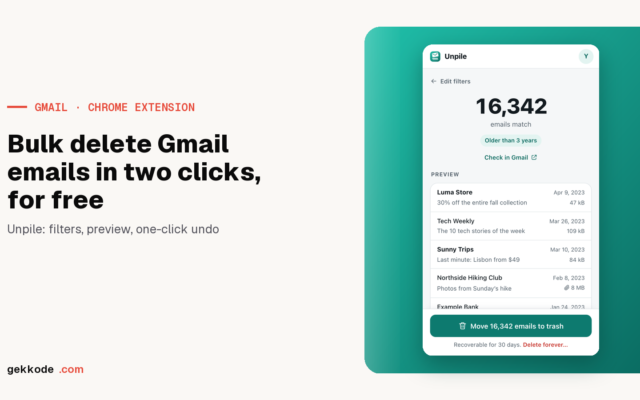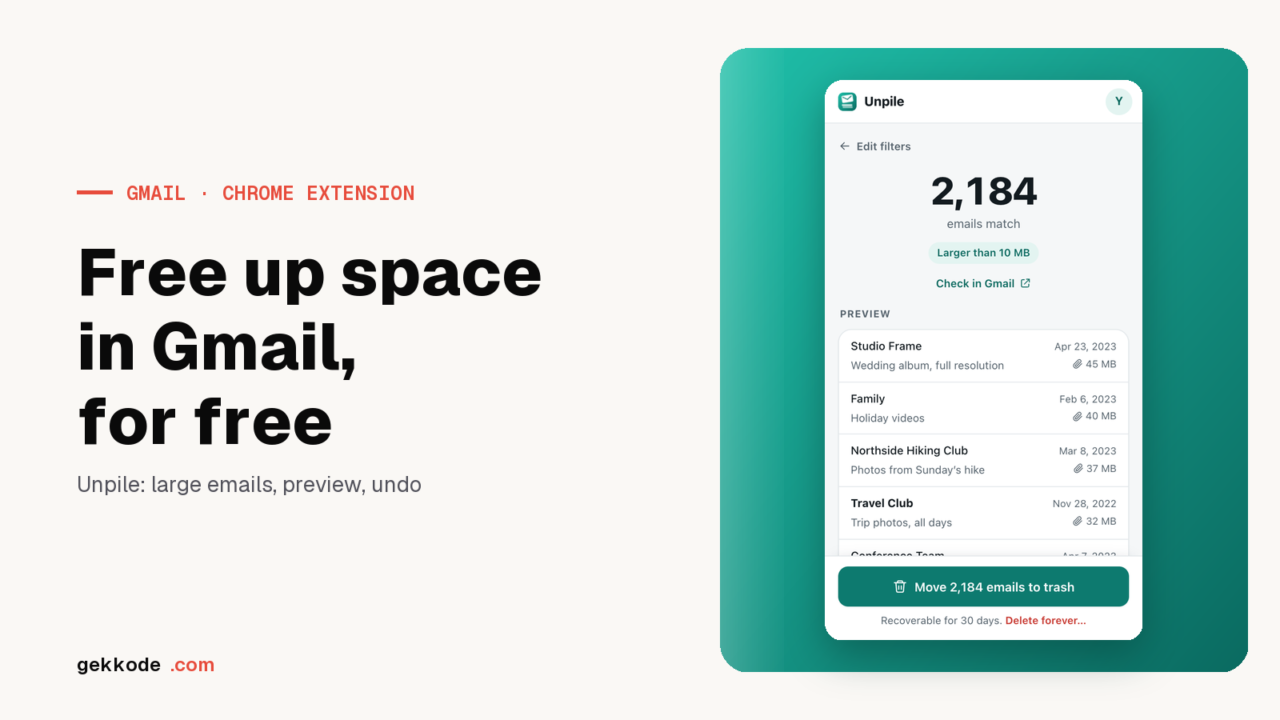
Gmail storage full? To free up space in Gmail, delete the largest and oldest emails, then erase them permanently, because the trash still counts toward the 15 GB for 30 days. The free Chrome extension Unpile finds them in one click (over 10 MB or over three years old), shows their exact count with a preview, then deletes them. It only cleans Gmail, not Drive or Photos.
With Gmail storage full at 15 GB, you can no longer send or receive messages, and emails sent to you bounce back to the sender, according to Google’s help. Unpile, a free Chrome extension, finds the largest and oldest emails, shows their exact count with a preview, then deletes them to free up space in Gmail without buying more storage.
Unpile is free.
Free, with no sign-up or ads, from the Chrome Web Store. For Google Chrome on desktop.
I built Unpile myself, as I built Email Impact. The extension is free, with no ads and no paid version. Gmail is a trademark of Google LLC, and Unpile is neither affiliated with nor endorsed by Google.
Gmail out of storage: what fills up your 15 GB
A personal Google account includes up to 15 GB of storage, shared between Gmail, Drive and Photos, as the help page on managing storage explains. WhatsApp backups take up space too, and messages left in the trash or in spam count toward the quota until they are permanently deleted.
Unpile only cleans Gmail. If photos or Drive files fill most of the 15 GB, the extension leaves them alone and only Gmail’s share goes down. Google’s short-term fixes include deleting emails with very large attachments, and that is what Unpile’s “Large emails” quick cleanup targets. It finds emails over 10 MB.
How to clean up Gmail storage: the emails to delete first
To clear out a full Gmail mailbox, Unpile offers six quick cleanups, and one click on any of them starts the search right away. They appear under these names in the interface:
| In Unpile | What the cleanup finds |
|---|---|
| “Large emails” | emails over 10 MB |
| “Promotions” | promotional emails older than six months |
| “Social” | social network notifications older than three months |
| “Updates” | messages in the Updates tab older than a year |
| “Never opened” | emails left unread for over a year |
| “All emails” | any email older than three years |
Custom filters go further. They combine the sender (name, address or a whole domain), a word in the subject, age (from one week to five years), category, attachments, read or unread status and minimum size, your choice of 1, 5, 10 or 25 MB. Since each search shows its exact number of emails, you can try 25 MB, then 10, 5 and 1 MB, and see what each threshold picks up before deleting anything.
Gmail storage full? Free up space in Gmail with Unpile, step by step
- Add Unpile to Chrome from the Chrome Web Store, then click its icon in the toolbar. The panel opens on the right of the page and stays there while you browse.
- Click “Connect my Google account”, then check the Gmail access box in the permission window that Google opens.
- Choose “Large emails” from the quick cleanups. The search starts right away. To set a size, an age or a sender instead, open the custom filters, then click “Find emails”.
- The panel shows how many emails match and lists ten of them, each with its sender, subject, date and size. “Check in Gmail” runs the same search in Gmail, so you can take a look before deleting.
- Confirm with “Move … emails to trash”, which shows the number found, or with “Delete forever…” to get the space back without waiting. Both options are explained below.
Closing the panel doesn’t stop anything, and progress appears as a percentage on the icon. A cleanup that gets interrupted, because Chrome closes for example, picks up where it left off. Each pass handles up to 100,000 emails in batches of a thousand, and a second search takes over when the mailbox holds more. Only the emails listed at the time of the search are processed, so a message that arrives in the meantime is not touched.
To empty a whole mailbox using criteria other than size, our article on bulk deleting Gmail emails with Unpile covers the filters and the undo.
Why Gmail stays full after deleting emails, and how to clear Gmail storage for good
The “Move … emails to trash” button sends the messages to Gmail’s trash. They stay there for thirty days, long enough to change your mind with “Undo: restore all”. But the trash still counts toward the 15 GB. According to Google’s page on storage, messages in the trash and spam keep counting toward the quota until they are permanently deleted, and Gmail only empties the trash by itself after 30 days.
To get the space back right away, “Delete forever…” erases the messages without going through the trash. A window asks you to type the word DELETE before it goes ahead, and it can’t be undone. A cleanup that has already gone through the trash ends the same way. Run the search again with “Include spam and trash” checked in the advanced options, so the count includes what is in the trash, then choose “Delete forever…”.
Even after a permanent deletion, the storage counter doesn’t always change right away. Google says it can take 48 to 72 hours for storage to update when you delete a lot of files at once. So an account that still looks full right after a big cleanup needs a little patience before you conclude that nothing was freed.
The full Gmail access Unpile asks for
When you connect, Google describes Unpile’s request as full access to Gmail, covering reading, composing, sending and permanently deleting emails. No narrower permission allows permanent deletion, which explains that wording and makes “Delete forever…” possible. Unpile doesn’t compose or send any message. It is free because it has no server to pay for. It talks to Gmail directly from your browser, and its privacy policy spells out every use.
Limits to know about
- Unpile runs in Chrome version 116 or later on a computer, and isn’t available in the mobile app. Since the quota belongs to the account, space freed on the computer shows up on your phone too.
- Google Photos and Drive stay as they are. Only Gmail is affected.
- The interface is in English only.
- It deletes what is already in the mailbox and doesn’t unsubscribe you from any newsletter.
- The trash and spam are only included in the search if “Include spam and trash” is checked.
Key takeaways
- The 15 GB is shared between Gmail, Drive and Photos, and Unpile only reduces Gmail’s share.
- Unpile finds emails over 10 MB or over three years old in one click, shows the exact count and gives a preview before anything is deleted.
- The trash still counts toward the 15 GB for 30 days. “Delete forever…” frees the space right away, and Google’s counter can take up to 72 hours to catch up.
- Unpile is free, with no server and no ads, for Chrome on desktop, with an English interface.
Unpile is free.
Free, with no sign-up or ads, from the Chrome Web Store. For Google Chrome on desktop.