
Git tutorial: the basic commands (add, commit, push, pull)
verified on 2 September 2026 · 7 min
The daily cycle comes down to four commands: git status to see where you stand, git add to stage, git commit -m to record, git push to send. To undo, the right command depends on a single question: if the commit is already pushed, use git revert, otherwise git restore, git commit --amend or git reset.
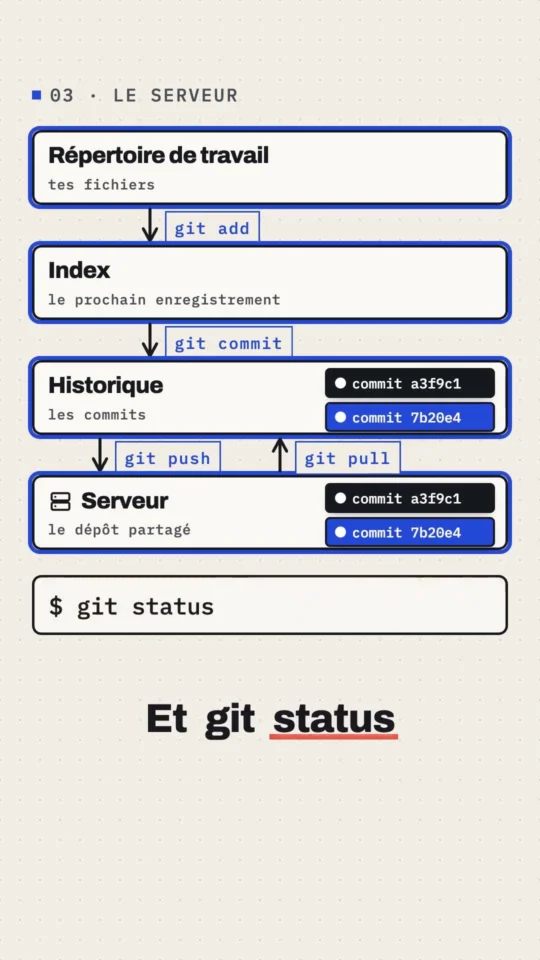
Git au quotidien : 4 commandes, 3 zones
Watch the ShortThe Gekkode YouTube channel publishes more videos about AI and code.
Subscribe to support the channelFive commands are enough for day-to-day work: status, add, commit, push and pull. This chapter takes them one at a time, then covers what no tutorial should ever skip: how to undo things when you get it wrong.
One prerequisite: your identity has to be declared, or Git will refuse your first commit. If that is not done yet, go back to the installation chapter.
The three areas of Git
Everything becomes simpler once you realise that your files always sit in one of three areas.
- The working directory: your files as you see them in the file explorer.
- The index, also called the staging area: the list of what will go into the next commit.
git addputs changes there. - The repository: the commit history, which
git commitfeeds.
That middle area is confusing at first, but it is what lets you record three changes out of five and keep the other two for a separate commit.
git status, the command to type all the time
It tells you where you stand, and its messages nearly always contain the command to type next. Get into the habit of running it before and after every operation.
git statusOn branch main
No commits yet
Untracked files:
(use "git add <file>..." to include in what will be committed)
.env
app.js
node_modules/
nothing added to commit but untracked files present (use "git add" to track)The short version fits on one line per file and quickly becomes second nature:
git status --short?? .env
?? app.js
?? node_modules/?? marks a file Git does not track yet, A a file added to the index, M a modified file.
.gitignore: what must never be committed
Before your very first git add, rule out everything that has no business being in a repository: dependencies you can reinstall, configuration files holding secrets, files generated by your system or your editor.
Create a .gitignore file at the root of the project:
node_modules/
vendor/
.env
.env.local
dist/
build/
*.log
.DS_Store
.idea/
.vscode/
Run git status again: the ignored files have gone from the list.
?? .gitignore
?? app.js
The .gitignore itself is versioned: it is part of the project and has to be shared with the team.
Watch out for one trap: .gitignore has no effect on a file that is already tracked. If you committed a .env before thinking about it, you have to take it out of the index explicitly:
git rm --cached .env
git commit -m "Retire le fichier .env du suivi"
The --cached option is the essential part: it removes the file from the index without deleting it from your disk.
And treat the secrets it contained as compromised: they stay readable in the history. Rotate them.
git add: staging the commit
git add app.js          # a single file
git add src/            # a whole folder
git add .               # everything that changed under the current folder
git add -p              # pick hunk by hunk, interactively
git add -p is worth trying early on. Git shows you each hunk of changes and asks whether you want it in the commit. It is the simplest way to produce commits that tell a single story.
git commit: recording
git commit -m "Ajoute la page d'accueil"[main (root-commit) fd4fdb7] Ajoute la page d accueil
2 files changed, 3 insertions(+)
create mode 100644 .gitignore
create mode 100644 app.jsIf nothing is staged, Git creates nothing and says so:
On branch main

Initial commit

nothing to commit (create/copy files and use "git add" to track)
On commit messages, only one rule is worth remembering: write what the commit does, not what you touched. “Fix the VAT calculation on orders outside the EU” beats “changed facture.php”. You are writing for yourself six months from now.
The -am shortcut combines add and commit, but only for files that are already tracked:
git commit -am "Corrige le libellé du bouton"Reading the history
git log                                  # full
git log --oneline                        # one line per commit
git log --oneline --graph --decorate     # with the shape of the branches
git log -p app.js # the history of a single file, with the diffs* fd4fdb7 (HEAD -> main) Ajoute la page d accueilHEAD is where you currently stand in the history. The arrow means that HEAD is following the main branch.
Seeing your changes before you commit
Two commands, often mixed up, that look at two different areas.
git diff            # what has changed but is not staged yet
git diff --staged # what is staged and will go into the next commitdiff --git a/app.js b/app.js
index e921523..ebde020 100644
--- a/app.js
+++ b/app.js
@@ -1 +1 @@
-console.log('hello');
+console.log('bonjour');After a git add app.js, the same change switches sides: git diff returns nothing any more, and git diff --staged shows the hunk. It is the best way to picture the index.
git push and git pull: talking to the server
git push        # send your local commits
git pull        # fetch and merge everyone else’s
These two short forms only work if the branch is linked to the server, which the -u from the previous chapter set up. To check that link:
git branch -vv* feature/panier bc2203a Page d accueil
main bc2203a [origin/main] Page d accueilThe main branch tracks origin/main, the feature/panier branch tracks nothing for now.
If someone pushed while you were working, your push is rejected. The procedure and the full explanation are in the chapter on branches.
Undoing a blunder
This is the part beginners look for most often, and the one they get explained the least. The right reflex is to answer a single question first: has what I want to undo already gone to the server?
The file is modified and I want to go back to the last commit
git restore app.js       # a single file
git restore .            # the whole working directory
Careful, this command destroys your changes with no safety net: they were never recorded anywhere, so Git cannot bring them back.
I ran git add too quickly
git restore --staged app.jsThe file leaves the index, your changes stay untouched in the working directory.
These two commands are the modern equivalent of git checkout -- fichier and git reset HEAD fichier. git restore has been around since Git 2.23 and says plainly what it does, where checkout and reset each do three different things depending on the options.
My last commit message is bad
git commit --amend -m "Le bon message"The same command adds a file you forgot: run your git add, then git commit --amend again. Only use it on a commit that has not been pushed yet: --amend does not edit the commit, it creates a new one in its place, and the old hash disappears.
The commit is already pushed and I want to undo it cleanly
git revert HEAD[main 0246de1] Revert "Ajoute un fichier par erreur"
1 file changed, 1 deletion(-)
delete mode 100644 bug.txtgit revert creates a new commit that applies the opposite of the previous one. The history grows instead of being rewritten, which is exactly what you need when other people have already pulled your work. It is the only safe method on a shared branch.
The commit is not pushed and I want to delete it
git reset --soft HEAD~1   # undoes the commit, keeps everything staged
git reset --mixed HEAD~1  # undoes the commit, keeps the files modified (default behaviour)
git reset --hard HEAD~1   # undoes the commit and deletes the changes
--soft is the most useful one: it hands your changes back, ready to be committed differently. --hard is the only one that destroys work, and it gives no warning. Type it only if you are certain.
I ran one reset –hard too many
All is not lost. For several weeks Git keeps a trace of every state HEAD has been through:
git reflog8207e54 HEAD@{0}: reset: moving to HEAD~2
f3951da HEAD@{1}: commit: Version 3
8ac671c HEAD@{2}: commit: Version 2
8207e54 HEAD@{3}: commit (initial): Version 1The two deleted commits are still there. Find the line matching the state you want, note its hash, and go back to it:
git reset --hard f3951daThe reflog, on the other hand, only rescues what had been committed. Changes that were never recorded are lost for good, which is one more reason to commit often.
The summary
| Situation | Command |
|---|---|
| Where am I? | git status |
| What have I changed? | git diff then git diff --staged |
| Stage a commit | git add |
| Record it | git commit -m "…" |
| Send it | git push |
| Get the others’ work | git pull |
| Undo an uncommitted change | git restore |
| Take a file out of the index | git restore --staged |
| Fix the last local commit | git commit --amend |
| Undo a commit already pushed | git revert |
| Recover a lost state | git reflog |
You now know how to work on your own. The next chapter brings in everyone else: branches, merges and conflicts. The last chapter then covers how to organise those branches across a whole team.
Common errors
git add before git commit, or use git commit -am for files that are already tracked.git rm --cached, and rotate the secrets it contained: they stay readable in the history.git reflog only rescues what had been committed.git revert.