
Git tutorial: Gitflow or trunk-based, choosing a branching model
verified on 7 September 2026 · 8 min
Trunk-based development keeps a single permanent branch and branches that live a few hours: it is the model to take as your default for a web application you deploy often. Gitflow adds a develop branch and release branches: it stays relevant for software shipped as numbered versions or maintained in several versions at once. Its own author has advised since 2020 against imposing it on a team doing continuous delivery.
Git imposes no organisation of its own. It gives you the branches covered in the previous chapter, and leaves you to decide which ones exist, who creates them and when they get merged. That decision is called a branching model, and two broad families share the ground: Gitflow and trunk-based development. This chapter covers both, with the commands they really use, and explains where each one is justified.
What Gitflow has become
Gitflow was described by Vincent Driessen in January 2010, in a post titled A successful Git branching model. The model was adopted on a massive scale, to the point of becoming the default reflex for a whole generation of developers.
On 5 March 2020, its author added a note at the top of his own article. It is worth reading before you adopt the model: for a team practising continuous delivery, he explicitly recommends something far simpler, along the lines of GitHub Flow, rather than shoehorning Gitflow in. He does add that Gitflow keeps all its meaning for software that is explicitly versioned, or where several versions have to be maintained in production at the same time.
In other words, the question is not “is Gitflow good or bad”, but “what am I shipping, and how often”.
Trunk-based development
The principle fits in one sentence: a single long-lived branch, main, into which everyone integrates their work very often, through branches with a very short lifespan.
A branch lives for a few hours, a day, rarely longer. It is merged as soon as the work is coherent, even if the feature is not finished: whatever is not ready for users to see is hidden behind a feature flag rather than held back on a branch. main is deployable at all times, and it is continuous integration that guarantees it.
# 1. start from the latest main
git switch main
git pull --rebase

# 2. a short branch, for one single thing
git switch -c fix/calcul-prix

# 3. work, commit
git commit -am "Corrige le calcul du prix TTC"

# 4. publish and open a pull request
git push -u origin fix/calcul-prix

# 5. after review and a green CI, merge into main
git switch main
git merge --no-ff -m "Fusionne fix/calcul-prix" fix/calcul-prix
git branch -d fix/calcul-prixMerge made by the 'ort' strategy.
app.js | 1 +
1 file changed, 1 insertion(+)
Deleted branch fix/calcul-prix (was 711bcbc).
* d7cdba6 Fusionne fix/calcul-prix
|
| * 711bcbc Corrige le calcul du prix TTC
|/
* 5b45117 Ajoute app.js
* 38b7dc5 Ajoute la docThe --no-ff option forces a merge commit even when a simple fast-forward would have been enough. The history then shows explicitly that a branch existed and what it contained. Without -m, Git opens the editor configured in chapter 1 with a pre-filled message. In practice, GitHub’s Merge pull request and GitLab’s Merge request buttons do this work for you.
Releases are marked with tags on main, with no dedicated branch:
git tag -a v1.0.0 -m "Première version publique"
git push origin v1.0.0tag v1.0.0
Tagger: Damien Flandrin <dam@example.com>
Date: Wed Sep 2 10:00:00 2026 +0000
Première version publiqueAlways prefer an annotated tag (-a with a message) to a lightweight one: it records the author, the date and a comment. And do not forget the message: without -m, Git opens an editor, and in an automated environment the command fails.
error: there was a problem with the editor 'false'
Please supply the message using either -m or -F option.
Gitflow
Gitflow adds a second permanent branch and three families of temporary branches.
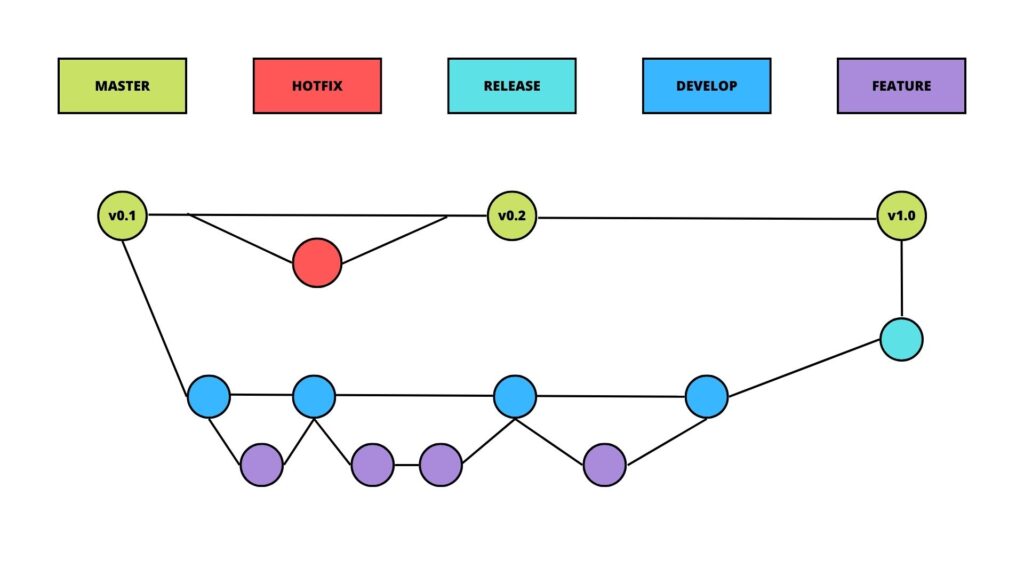
master used at the time for the production branch.| Branch | Lifespan | Role |
|---|---|---|
main | permanent | what is in production, one tag per release |
develop | permanent | where work in progress is integrated |
feature/* | temporary | one feature, branches off develop and goes back to it |
release/* | temporary | stabilising a release, branches off develop, goes into main and develop |
hotfix/* | temporary | an urgent fix, branches off main, goes into main and develop |
Note that the production branch was called master in the 2010 article. Since hosting platforms now create repositories on main, that is the name used here.
Gitflow by hand
No tool is needed, the model is nothing more than branch discipline.
# create the integration branch, once and for all
git switch -c develop
git push -u origin develop

# a feature
git switch -c feature/livraison develop
git commit -am "Ajoute le calcul des frais de livraison"
git switch develop
git merge --no-ff -m "Fusionne feature/livraison" feature/livraison
git branch -d feature/livraison

# a release
git switch main
git merge --no-ff -m "Version 1.2.0" develop
git tag -a v1.2.0 -m "Version 1.2.0"* 876ffba Version 1.2.0
|
| * 269874d Fusionne feature/livraison
|/|
| * afcc714 Ajoute la livraison
|/
* d7cdba6 Fusionne correctif/prix
|
| * 711bcbc Corrige le calcul du prix
|/
* 5b45117 Ajoute app.jsGitflow with the git-flow tool
A set of commands exists to automate those sequences. The original project is no longer maintained, the AVH edition has taken over, and it is available in most package managers under the name git-flow.
git flow init -d # -d accepts all the default namesUsing default branch names.
Which branch should be used for bringing forth production releases?
- main
Branch name for production releases: [main]
Branch name for "next release" development: [develop]
How to name your supporting branch prefixes?
Feature branches? [feature/]
Bugfix branches? [bugfix/]
Release branches? [release/]
Hotfix branches? [hotfix/]
Support branches? [support/]
Version tag prefix? []
Hooks and filters directory? [/root/a8/.git/hooks] The life cycle of a feature then comes down to two commands:
git flow feature start facturation
# … you work and commit …
git flow feature finish facturationSwitched to branch 'develop'
Updating 5b45117..61c7618
Fast-forward
facture.php | 1 +
1 file changed, 1 insertion(+)
Deleted branch feature/facturation (was 61c7618).
Summary of actions:
- The feature branch 'feature/facturation' was merged into 'develop'
- Feature branch 'feature/facturation' has been locally deleted
- You are now on branch 'develop'And so does the life cycle of a release. git flow release finish merges into main, sets the tag, then carries the whole thing back into develop:
git flow release start 1.1.0
# … version number bumped, last fixes …
git flow release finish -m "Version 1.1.0" 1.1.0* 1b1a31d Merge tag '1.1.0' into develop
|
| * 48f5649 Merge branch 'release/1.1.0'
| |
| | * eb133dd Prepare la version 1.1.0
| |/
|/|
* | 61c7618 Ajoute la facturation
|/
* 5b45117 Ajoute app.jsThat graph shows exactly what the model gets criticised for: three merge commits for a release that only contained one feature.
Which one to choose
| Trunk-based | Gitflow | |
|---|---|---|
| Permanent branches | main | main and develop |
| Lifespan of a branch | hours or days | until the next release |
| Release cadence | continuous, several times a day | by dated releases |
| History | simple | branched |
| Conflicts | rare and small | rare but large |
| Prerequisites | solid automated tests, feature flags | naming discipline, an acceptance phase |
| Cost of entry | low in commands, high in tooling | high in commands, low in tooling |
Choose trunk-based development if you ship a web application or a service that you deploy often, if only one version is in production at a time, if your team is small, and if you have automated tests worthy of the name. That covers the vast majority of web projects today, and it is the model to take as your default.
Choose Gitflow if you publish numbered releases that your users install, if you have to maintain several versions in parallel, if a formal acceptance phase separates the end of development from going live, or if you work under regulatory constraints that require traceability per release. Libraries, desktop applications, embedded software, on-premise versions at customer sites: the model keeps all its relevance there.
If you are starting out on your own, neither one. Work on main, cut a branch when you are trying something uncertain, and set a tag when you are happy with the result. You will adopt a model the day there are several of you, and on that day trunk-based is the easier one to put in place.
One last piece of advice: do not adopt a model because it has a reputation for being serious. Gitflow applied by a team of two people who deploy every day produces empty release branches and pointless merges. The right model is the one that matches the way you ship.
Where to go next
You now have the basics of Git. Three directions are worth the detour from here.
Continuous integration first, the indispensable companion to trunk-based development: having your tests run automatically on every push. GitHub Actions and GitLab CI are built into those platforms and are configured with a single YAML file in your repository.
Review requests next, called pull requests on GitHub and merge requests on GitLab. They are what organises code review in a team, and in both of the models shown here they are the real way in to main.
Finally, the rescue commands: git bisect to track down by binary search the commit that introduced a bug, git cherry-pick to pull one specific commit from another branch, and git worktree to have several branches open in several folders at once.
The full table of contents stays available from the Learn Git tutorial, and the other tutorials of the track from the Web development hub.
Common errors
-m.git tag v1.0 records no author, no date and no comment. Use git tag -a for a published release.git push does not send tags. Push them explicitly with git push origin v1.0.0.