PrestaShop has no setting for adding custom checkout fields: you need a module. The free plan of Easy Checkout Fields adds up to three fields (text, dropdown, yes / no, consent…) to the checkout steps, from PrestaShop 1.7.6 to 9.1, and shows the answers on the order page and in emails.
PrestaShop : ajouter un champ personnalisé à la commande (module gratuit)
The Gekkode YouTube channel publishes more videos about AI and code.
Subscribe to support the channelThe PrestaShop checkout asks for a name, an address, a carrier and a payment method. As soon as a shop needs anything else, such as a door code, a purchase order number, a pickup date or a consent checkbox, it has to add a question to the checkout, and PrestaShop has no setting for that.
This guide shows how to add PrestaShop custom checkout fields with Easy Checkout Fields, the Gekkode module, on its free plan: download, installation, field setup and the answer in the order, with screenshots from a PrestaShop 9.1 test shop.
Add custom checkout fields to PrestaShop, step by step
The free plan allows three active fields and six types: short text, text area, dropdown list, yes / no, consent checkbox and information block. Each field goes before or after one of the four checkout steps, and the answer appears on the back-office order page, the confirmation page, the customer account and the order emails. The module works with PrestaShop 1.7.6 to 9.1, on the native checkout and the Classic theme. The free plan needs no licence key.
The screenshots below come from a PrestaShop 9.1 shop in English, with version 1.1.7 of the module and the free plan.
1. Download the module
On the Easy Checkout Fields page, choose the Free plan and add it to your cart. The order comes to €0 and needs no bank card, but you do need a free account on the marketplace. You then download the ZIP from your customer area, under My Licenses, with the Download Module button.
2. Install the ZIP in PrestaShop
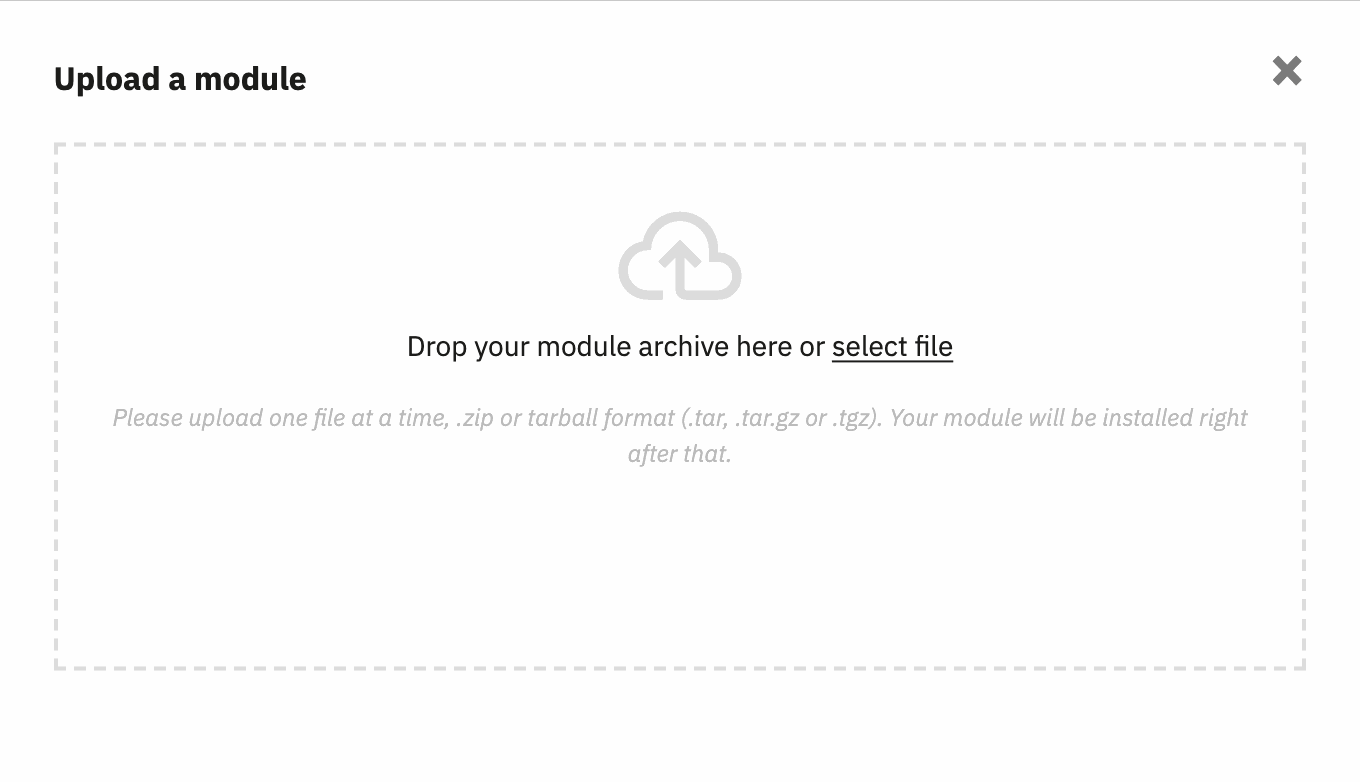
In the back office, open Modules > Module Manager, click Upload a module and drop the ZIP file. Installing the module changes nothing in the checkout: customers see nothing until a field is created and enabled. The module then sits in the Orders > Easy Checkout Fields menu.
3. Create the field
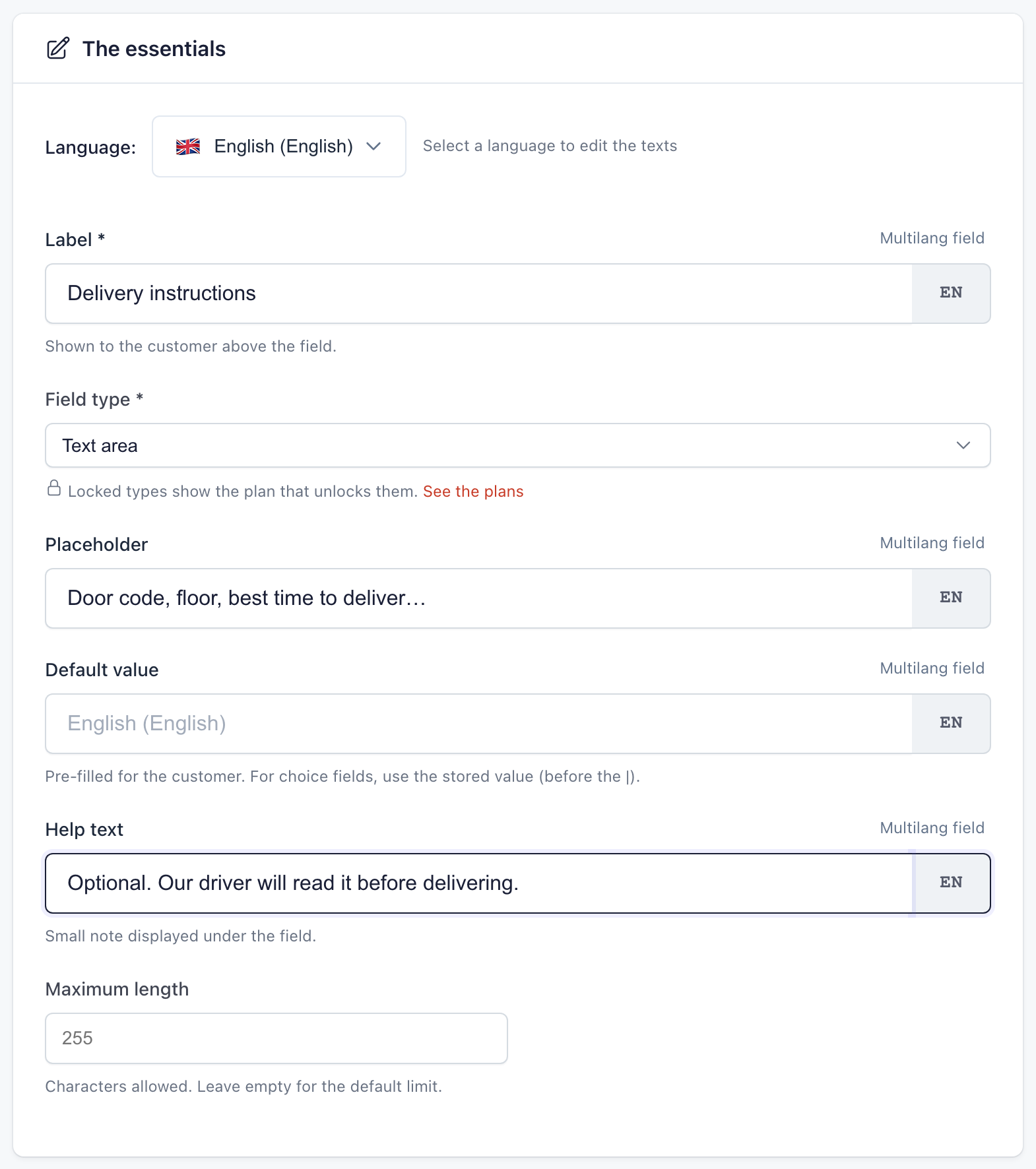
In the Fields tab, click New field. The main block asks for the label the customer sees, the field type, placeholder text and optional help text. For a delivery instructions field, a text area fits:
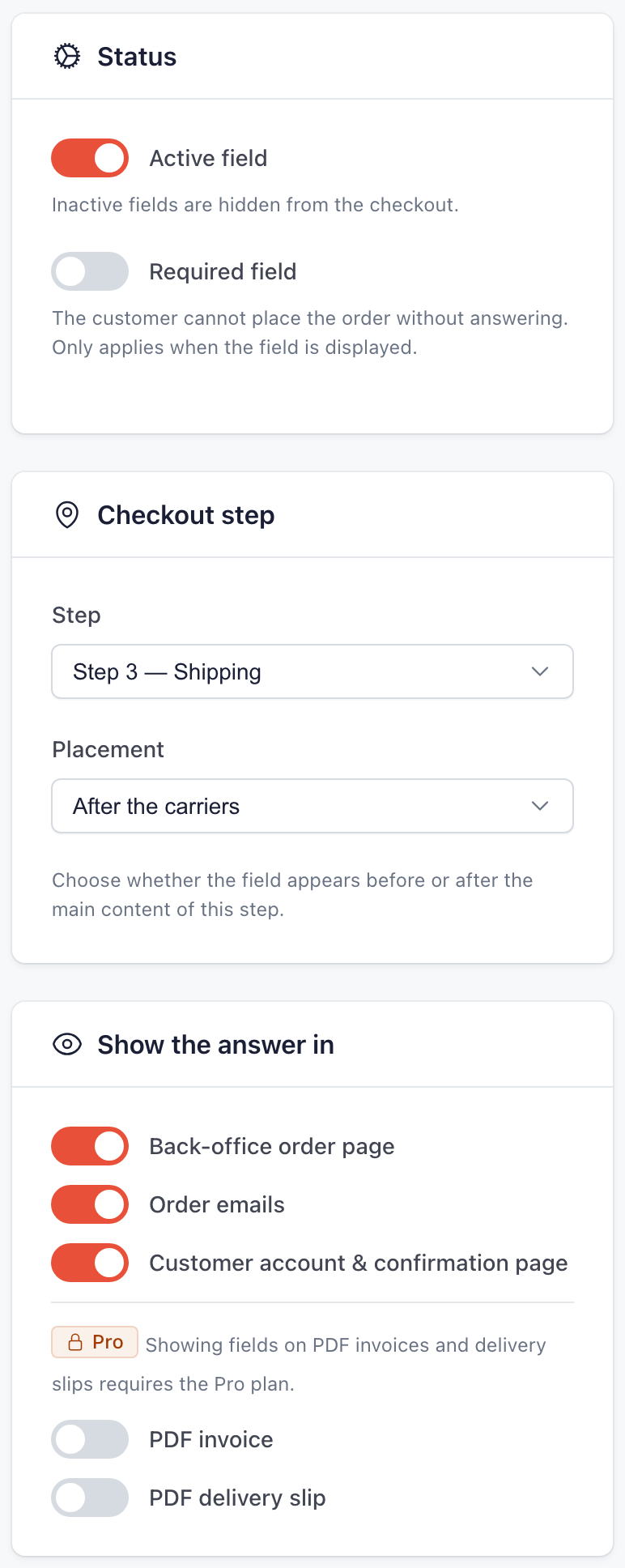
The right-hand column sets three things: whether the field is active and required, the checkout step where it appears (here the shipping step, after the carriers) and where the answer will be shown afterwards. On the free plan, the PDF invoice and delivery slip stay greyed out.
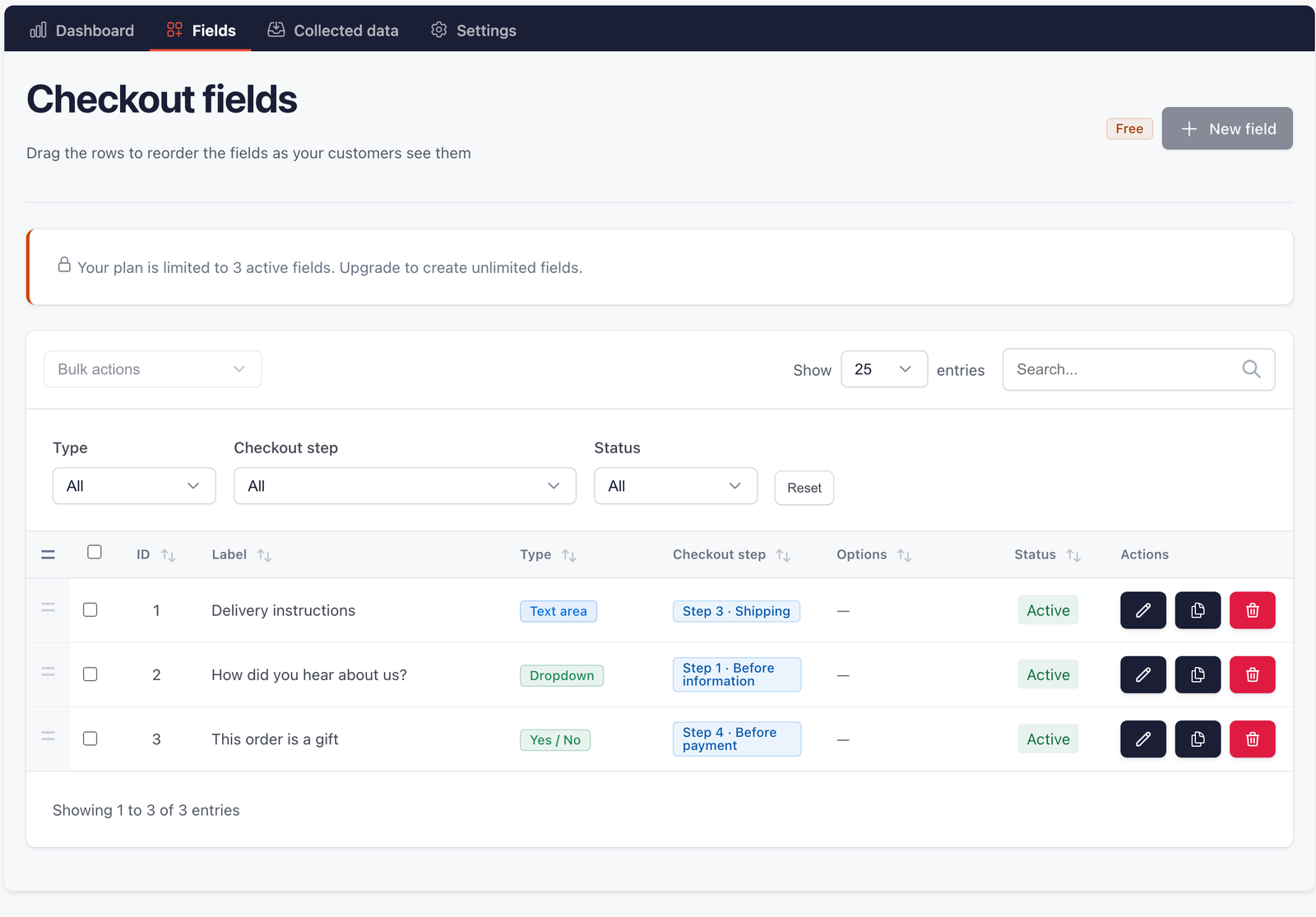
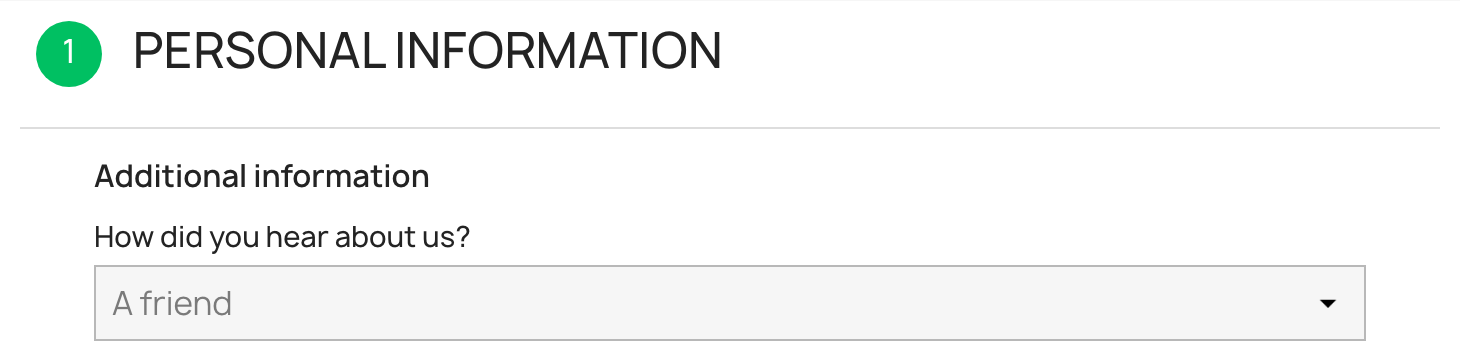
For this example, two more fields were created the same way: a “How did you hear about us?” list at the start of the personal information, and a “This order is a gift” yes / no switch before payment. A fourth field is refused, with a message about the plan limit:
4. Check the field in the checkout
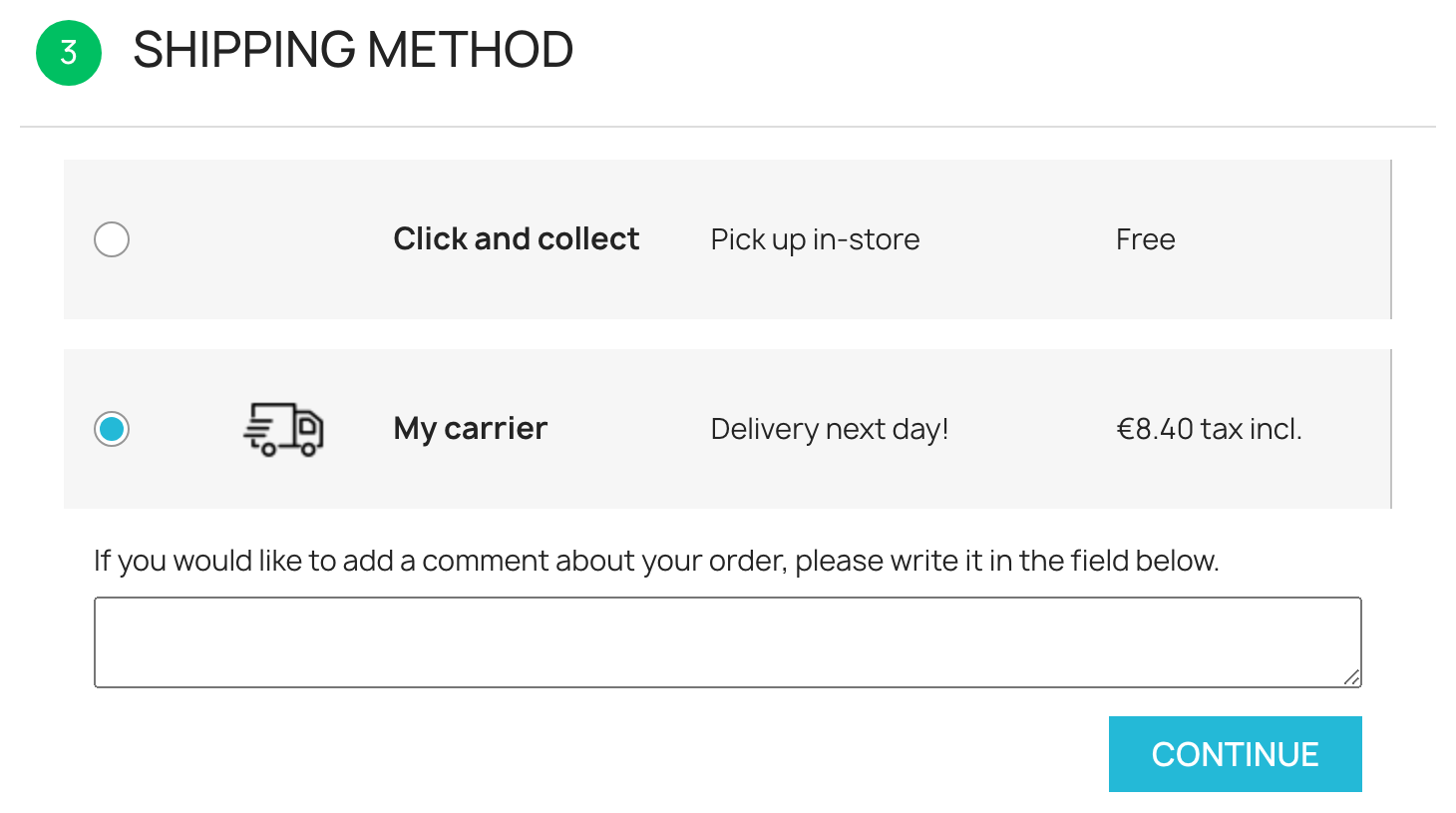
On the customer side, the field appears under the heading “Additional information”, where you placed it. Here it sits under the carriers, next to the native PrestaShop message box:
The dropdown list sits at the top of the first step, even before the choice between guest checkout and signing in:
5. Find the answer in the order
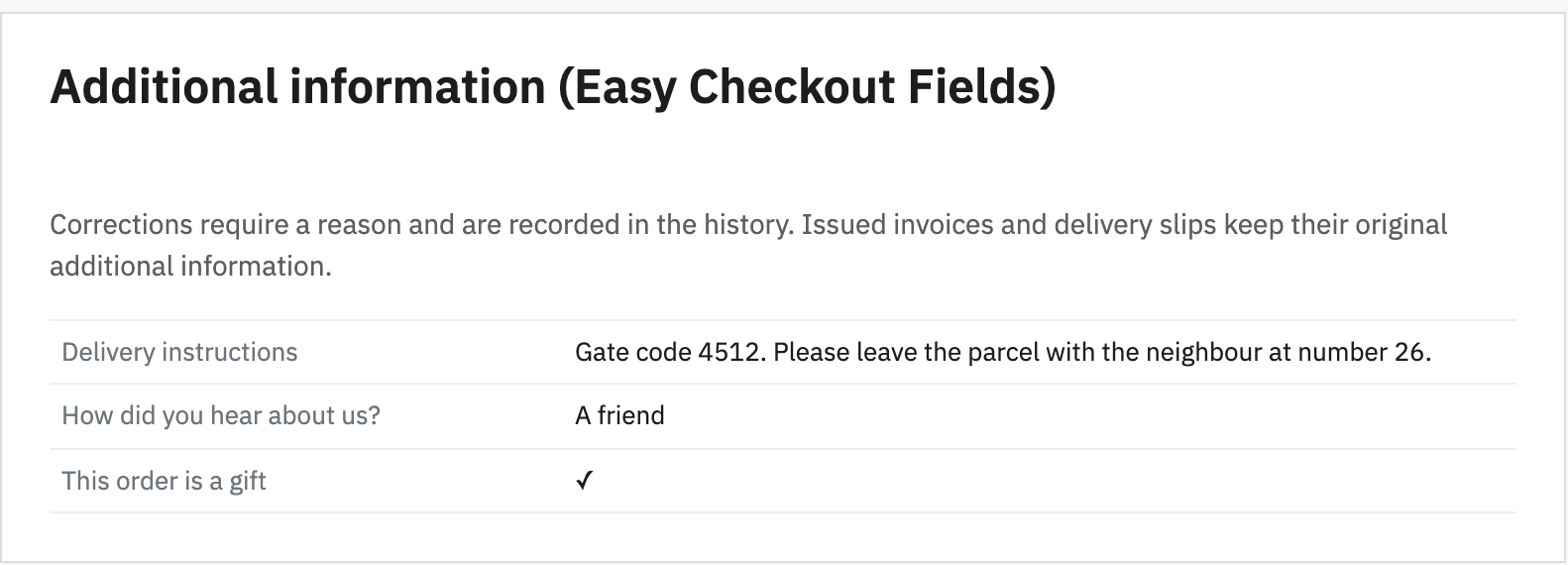
Once the order is placed, an “Additional information” block is added to the order page in the back office, with the label of each field and the customer’s answer:
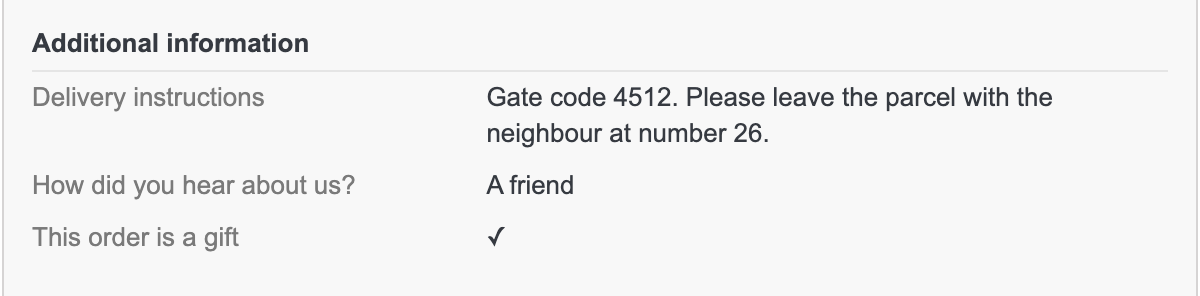
The same lines appear on the confirmation page, in the order details of the customer account and in the emails, including the “new order” email sent to the merchant:
The full guide, with the settings for each field type, is in the module documentation.
Limits of the free plan
The Free plan covers one shop and suits a few questions asked of every customer, with these limits:
- three active fields at most,
- no date, time, number, email, phone, radio button, multiple checkbox or file upload fields,
- no conditional display: you cannot show a field based on the carrier, payment method, country or another answer,
- no answer on the PDF invoice or delivery slip, no CSV export, no editing an answer from the order.
The Pro plan removes these limits for €2 per month or €19.20 per year. On compatibility, the module is validated on the native PrestaShop checkout from 1.7.6 to 9.1 with the Classic theme. The Hummingbird theme and PrestaShop 9.2 are not supported yet, and one-page checkout modules from other vendors, like themes that rewrite the checkout, have not been validated. On those shops, test on a copy of the site first.
Frequently asked questions
Can the field be made required?
Yes, on every plan. The Required field switch stops customers from placing the order without answering, as long as the field is shown to them. The Pro plan adds conditional requirements, for example a purchase order number required only for payment by bank transfer.
Does the field appear on the invoice?
Not on the free plan. The answer stays visible on the order page, in the emails and in the customer account. The PDF invoice and delivery slip need the Pro plan.
Are customer answers handled for GDPR?
The module relies on PrestaShop’s official GDPR module to export and erase a customer’s data. On every plan, it can also purge abandoned carts and anonymise data on a schedule. The settings are described in the documentation.
Key takeaways
- PrestaShop has no setting for adding a question to the checkout: you need a module.
- The free plan of Easy Checkout Fields adds up to three fields (text, dropdown, yes / no, consent…) on PrestaShop 1.7.6 to 9.1, with no licence key.
- The answers appear on the order page, the confirmation page, the customer account and the order emails.
- The Pro plan adds the other field types, conditional display, the PDF invoice and CSV export, for €2 per month or €19.20 per year.
To go further on the shop side, our article on the PrestaShop MCP shows how to manage a catalogue with an AI agent. And for writing labels and help text, the HTML form best practices apply to a checkout field too.