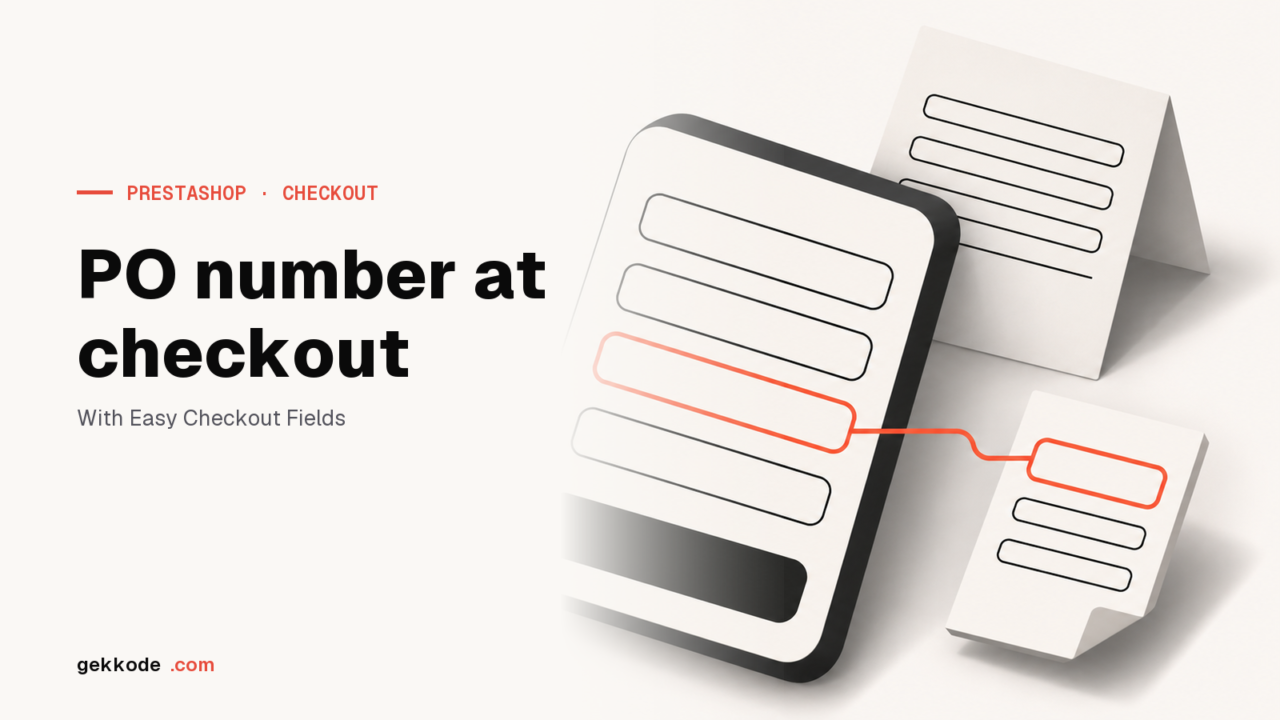
The PrestaShop checkout does not ask for a purchase order number. Easy Checkout Fields adds this text field to the checkout on its free plan. With the Pro plan (€2 a month), it shows the field to business customers only and prints the number on the PDF invoice, where French rules list it among the mandatory details when the buyer issued one.
When a business buys from your shop, the order often starts in its purchasing department, which issues a numbered purchase order before anyone places the order online. If that number does not come back on your invoice, their accounts team cannot match it, and the PrestaShop checkout never asks for it.
In France, the official list of mandatory invoice details on Service-Public, checked on 11 August 2026, even includes the purchase order number “when it was issued by the buyer beforehand”. This guide adds the field to the checkout with Easy Checkout Fields, Gekkode’s module, limits it to business customers and prints it on the PDF invoice, on a PrestaShop 9.1 test shop.
Add a purchase order number to the PrestaShop checkout, step by step
The field itself, a short text, works on the module’s free plan. Showing it to one customer group only and printing it on the invoice need the Pro plan, at €2 a month or €19.20 a year. Our module screenshots are always taken on an English shop. The label you type for each language of your shop is the one your customers will read.
1. Install the module
Download the ZIP from the Easy Checkout Fields page and install it from Modules > Module Manager. Every step, from the free account to the first field, is in our guide to adding a custom field to the PrestaShop checkout.
2. Create the field
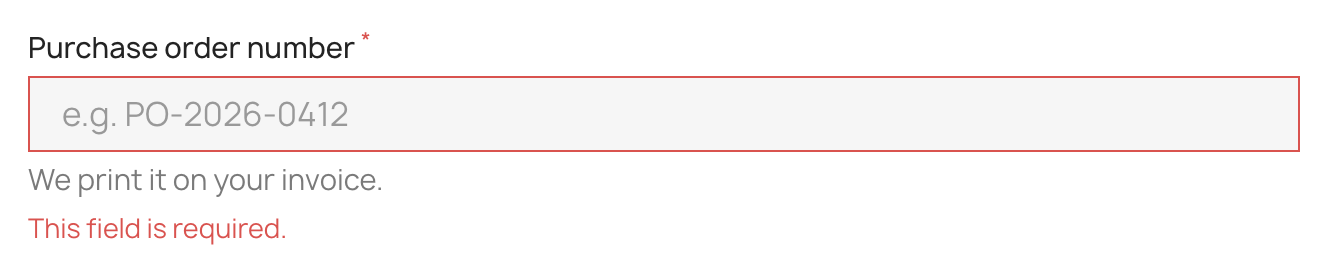
In Orders > Easy Checkout Fields, Fields tab, click New field and choose the Text type. Fill in a clear label (“Purchase order number”), an example in the box that shows the expected format (PO-2026-0412) and a help text that says why you ask (“We print it on your invoice.”).
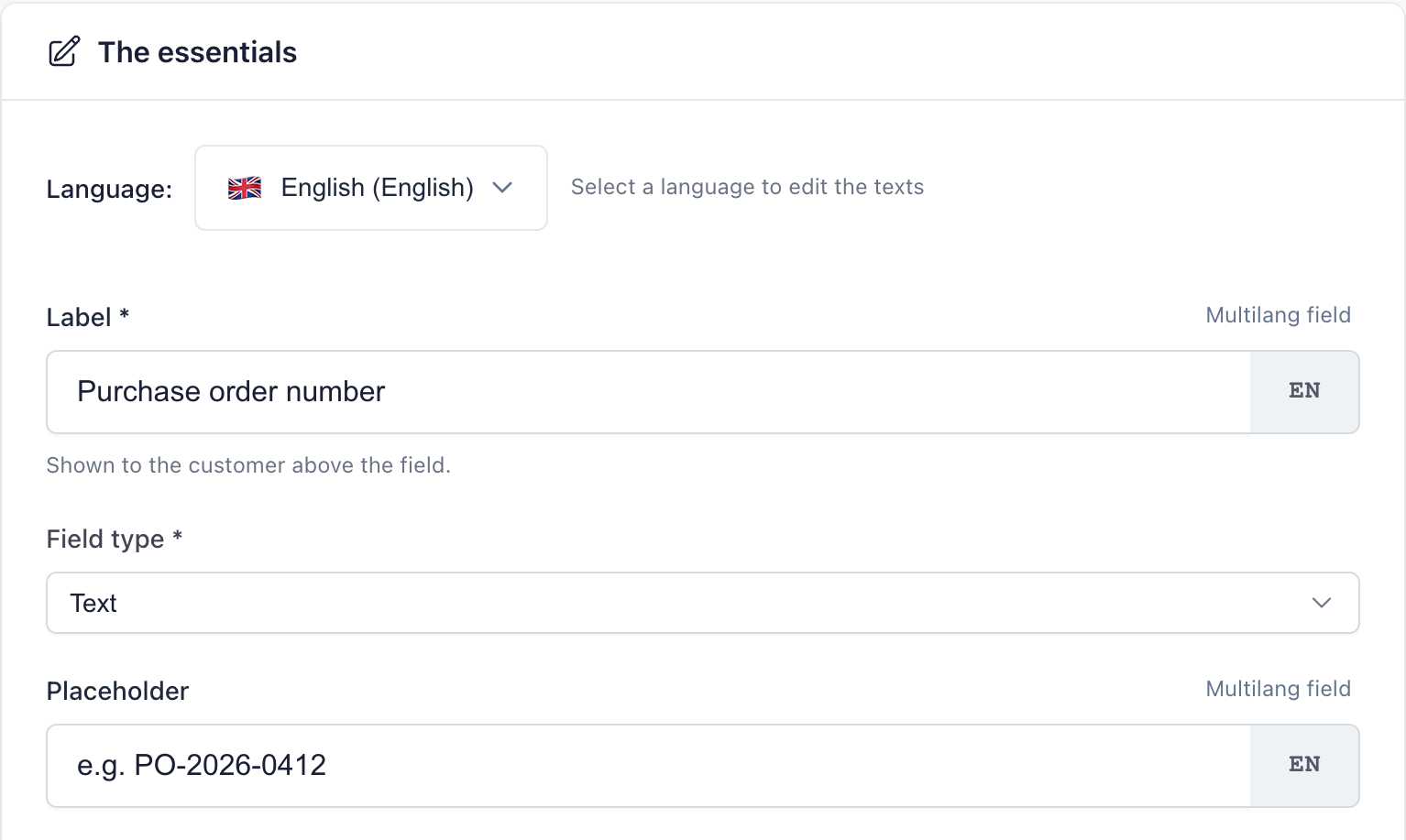
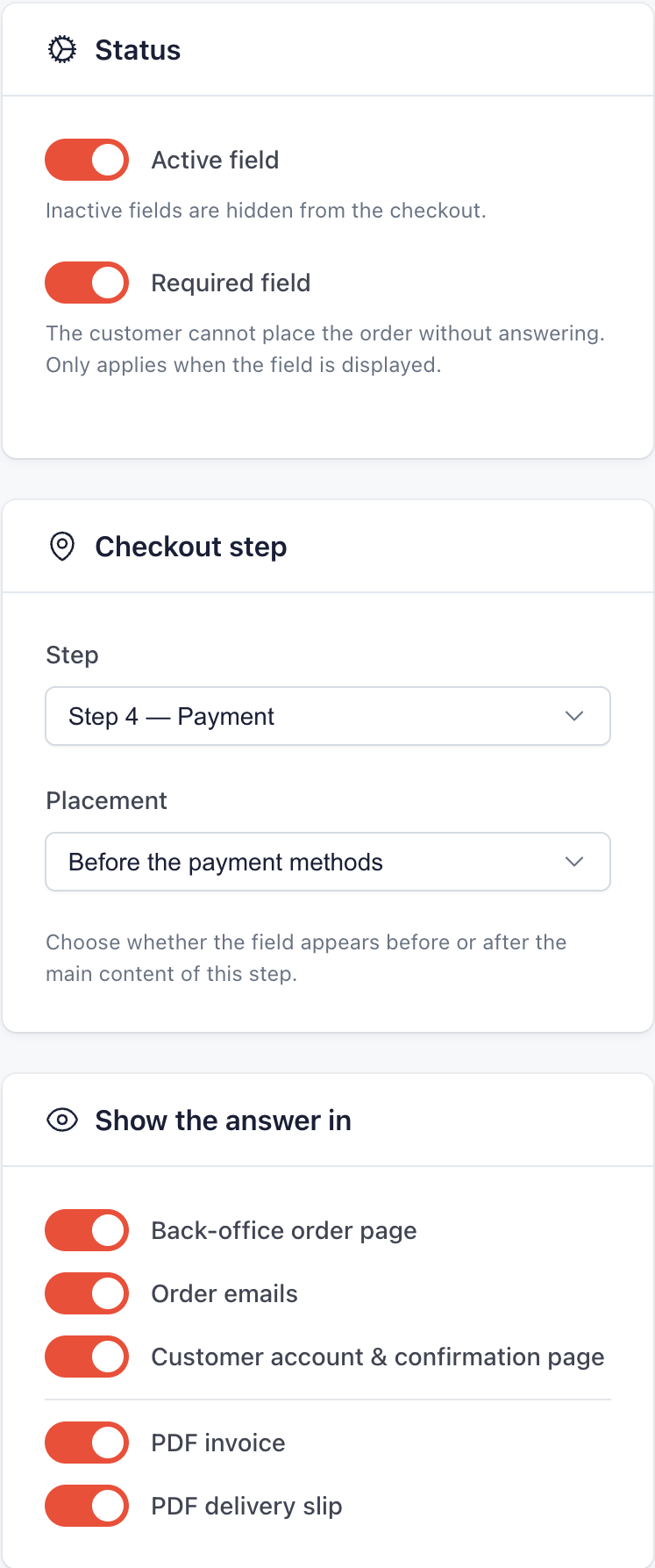
Put it on the Payment step, before the payment methods: customers arrive there with a confirmed cart and often their purchase order at hand. The Required field switch makes it mandatory, and the right-hand column picks where the answer is shown afterwards: order page, emails, customer account, PDF invoice and delivery slip.
3. Show it to business customers only
A private customer has no purchase order, and a mandatory field they do not understand can make them leave the cart. With the Pro plan, the Display targeting card limits the field to one customer group: here “Business”, where business accounts are kept. Other customers do not see it, and its requirement does not block them.
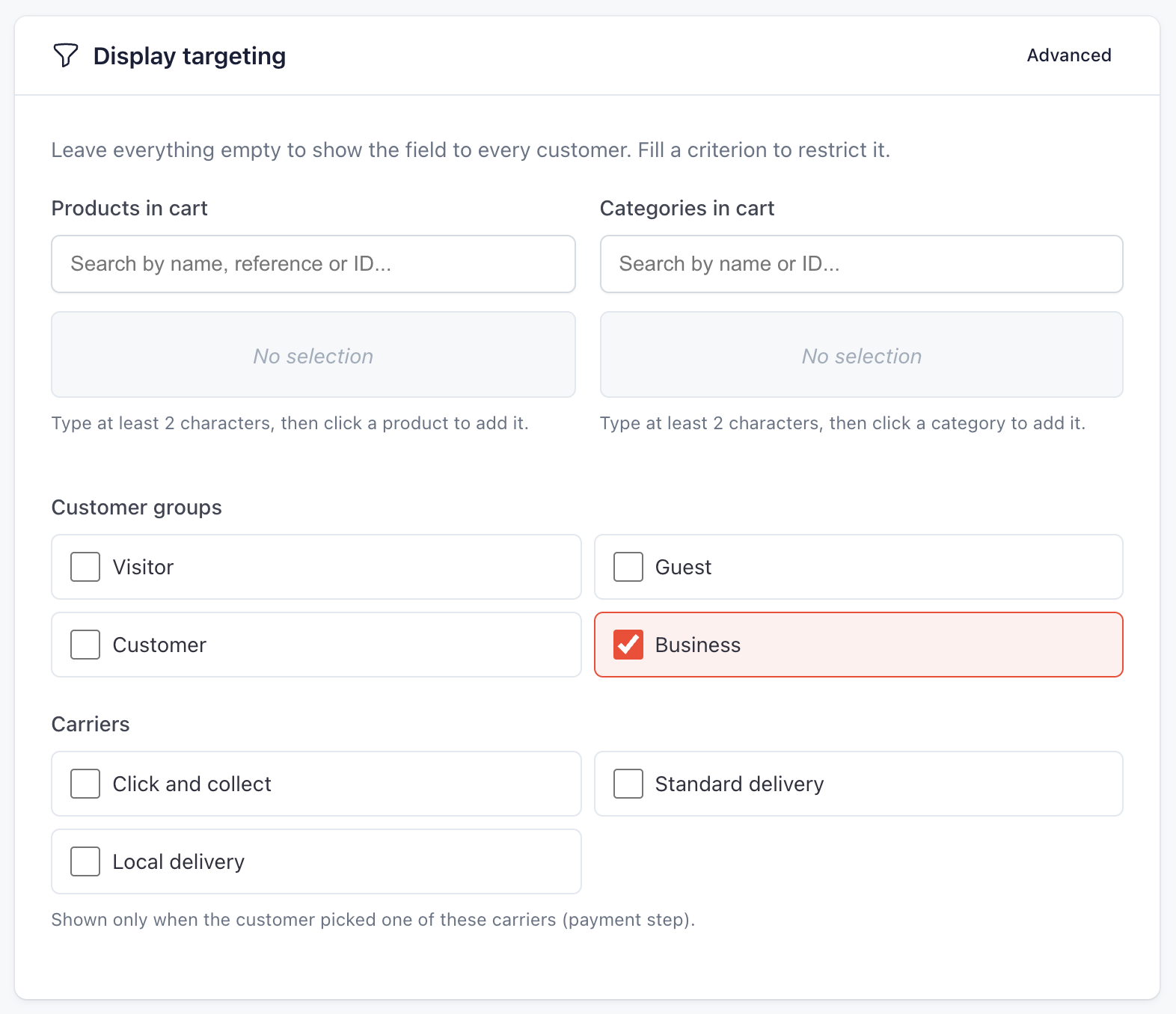
The field only shows to customers logged in to an account of that group. A customer who orders without creating an account stays, for PrestaShop, a visitor (Visitor group) and does not see it, so your business buyers need to order with their account.
The Conditionally required setting, also in the Pro plan, does the opposite: the field stays visible to everyone and is only required in one case, for example when the customer chooses to pay by bank transfer.
4. What the customer sees
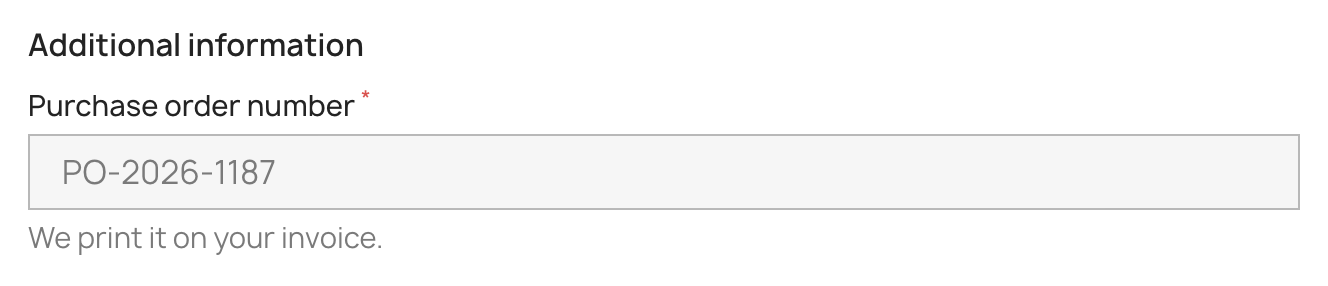
The answer is saved while the customer types. If they go back to an earlier step to change the address, the number stays in place. If they try to order without answering, the order stops and a message shows under the field:
5. The number on the order and the invoice
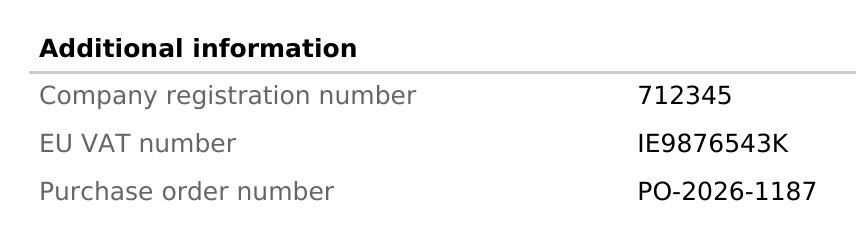
Once the order is placed, the number shows on the confirmation page, in the customer account, on the back-office order page, in the merchant’s “new order” email and in the customer’s confirmation emails. With the Pro plan, it is printed on the PDF invoice and on the delivery slip:
The order page also lets you correct an answer, with the Pro plan. Each correction asks for a reason and stays in the history, and an invoice already issued keeps the original information. The live demo lets you try the module in the shop and in the back office before installing it.
Free or Pro plan for this field
On the free plan, the purchase order number takes one of the three fields allowed. It is then asked to every customer, required or not, and shown in the back office, the emails and the customer account. Two things are missing for a shop that also sells to private customers: keeping it for business customers and printing it on the invoice.
The Pro plan adds:
- targeting by customer group, products, categories, languages or carriers
- conditional requirement, for example for bank transfer payments only
- the PDF invoice, the delivery slip and the CSV export of answers
- correcting an answer from the order page
The module records the number as the customer types it, without checking that it matches a real purchase order. It does not carry it over from one order to the next either, which suits this case since each purchase has its own number.
Key takeaways
- In France, the buyer’s purchase order number is one of the mandatory invoice details, when there is one.
- The PrestaShop checkout does not ask for it. Easy Checkout Fields adds it as a text field.
- The field works on the free plan. Keeping it for logged-in business customers and printing it on the PDF invoice need the Pro plan, at €2 a month.
Business customers often have other numbers to give. The company number and the EU VAT number can be asked the same way, from companies only.