The PrestaShop checkout does not ask for a delivery date. The Date field of Easy Checkout Fields (Pro plan, €2 a month) adds one after the carrier choice, refuses past dates with the “Today or later” setting, only shows for the chosen carrier and prints the date on the order and the delivery slip.
When a customer orders a bouquet on Monday for a birthday on Saturday, or a lunch platter for a Thursday meeting, the delivery day is part of the order. Yet the PrestaShop checkout asks for neither a day nor a time.
Easy Checkout Fields, Gekkode’s module, adds this preferred day to the checkout as a calendar. It refuses past dates, only appears for the carrier concerned, and the date ends up on the order and the delivery slip. The screenshots come from a PrestaShop 9.1 test shop, and the Date field needs the Pro plan, billed €2 a month or €19.20 a year.
Add a preferred delivery date to the PrestaShop checkout, step by step
1. The Date field and its allowed dates
The module installs like any PrestaShop module, from the ZIP downloaded on its page, and the custom checkout field tutorial goes through every screen. In Orders > Easy Checkout Fields, the New field button then opens the form: pick the Date type.
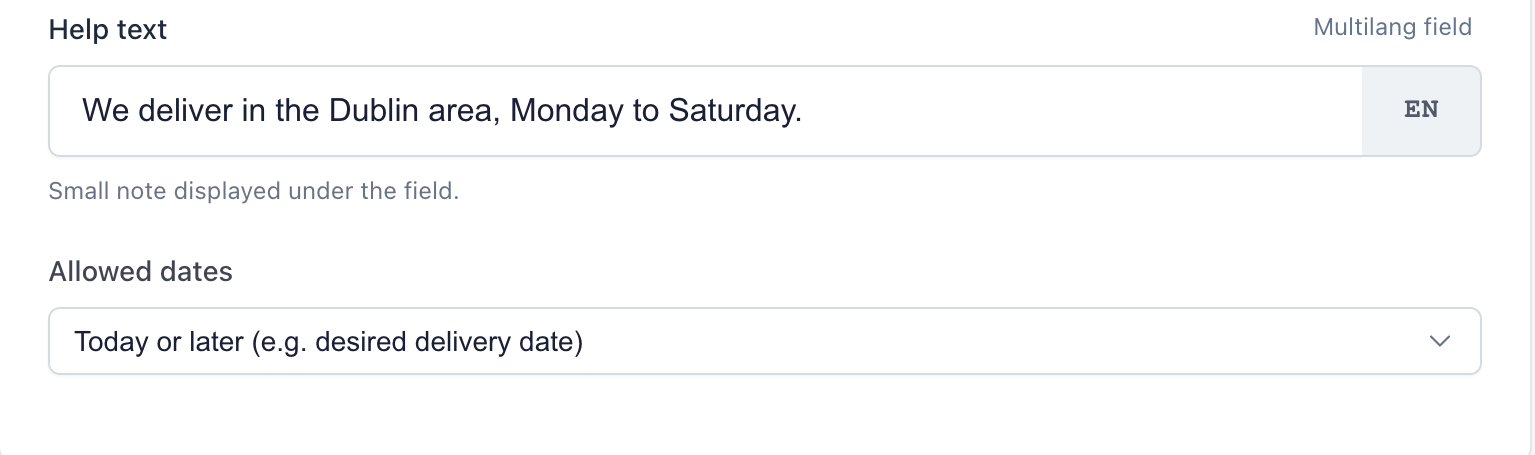
The Allowed dates setting offers three choices: Any date, Today or later and Today or earlier. For a delivery, choose “Today or later”, which the module itself gives as the example for a desired delivery date:
2. Place it after the choice of carrier
The date is asked when the customer chooses the delivery: set the field on the Shipping step, after the carriers (After the carriers). With the Classic theme, this position sits under the button that moves to the next step. If the date is essential, make the field required: when empty, it stops the customer and scrolls the page to it, while an optional field can go unnoticed.
3. Show it for the delivery concerned only
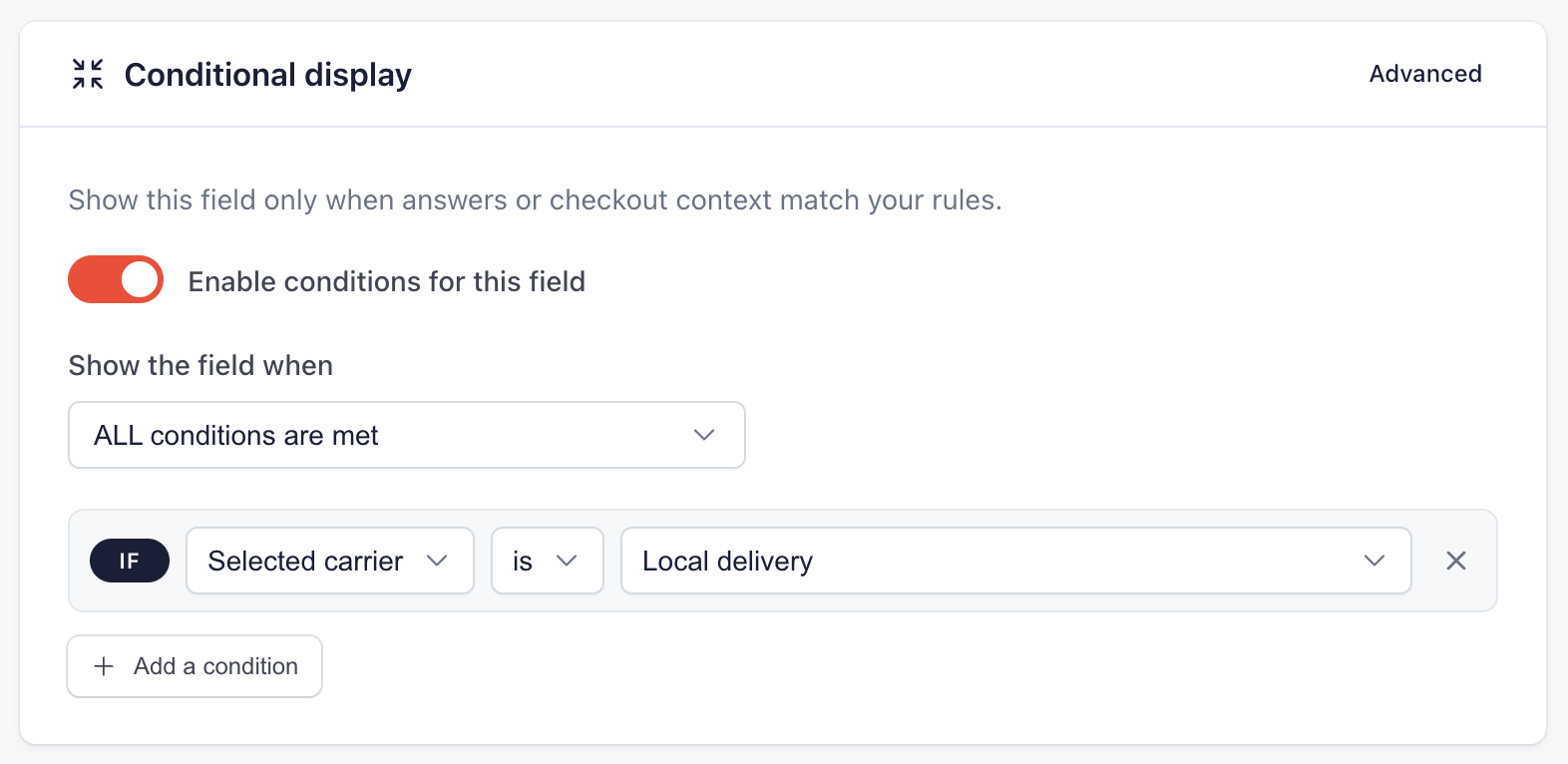
A customer who picks a parcel service has no day to set. In the Conditional display card, add the condition Selected carrier, is, Local delivery, the test shop’s own delivery round. The field appears as soon as the customer ticks that carrier, and disappears if they choose another one, without reloading the page.
The Carriers list of the Display targeting card does not fit here: its help text says it applies to the Payment step, once the carrier is already chosen.
4. What the customer sees
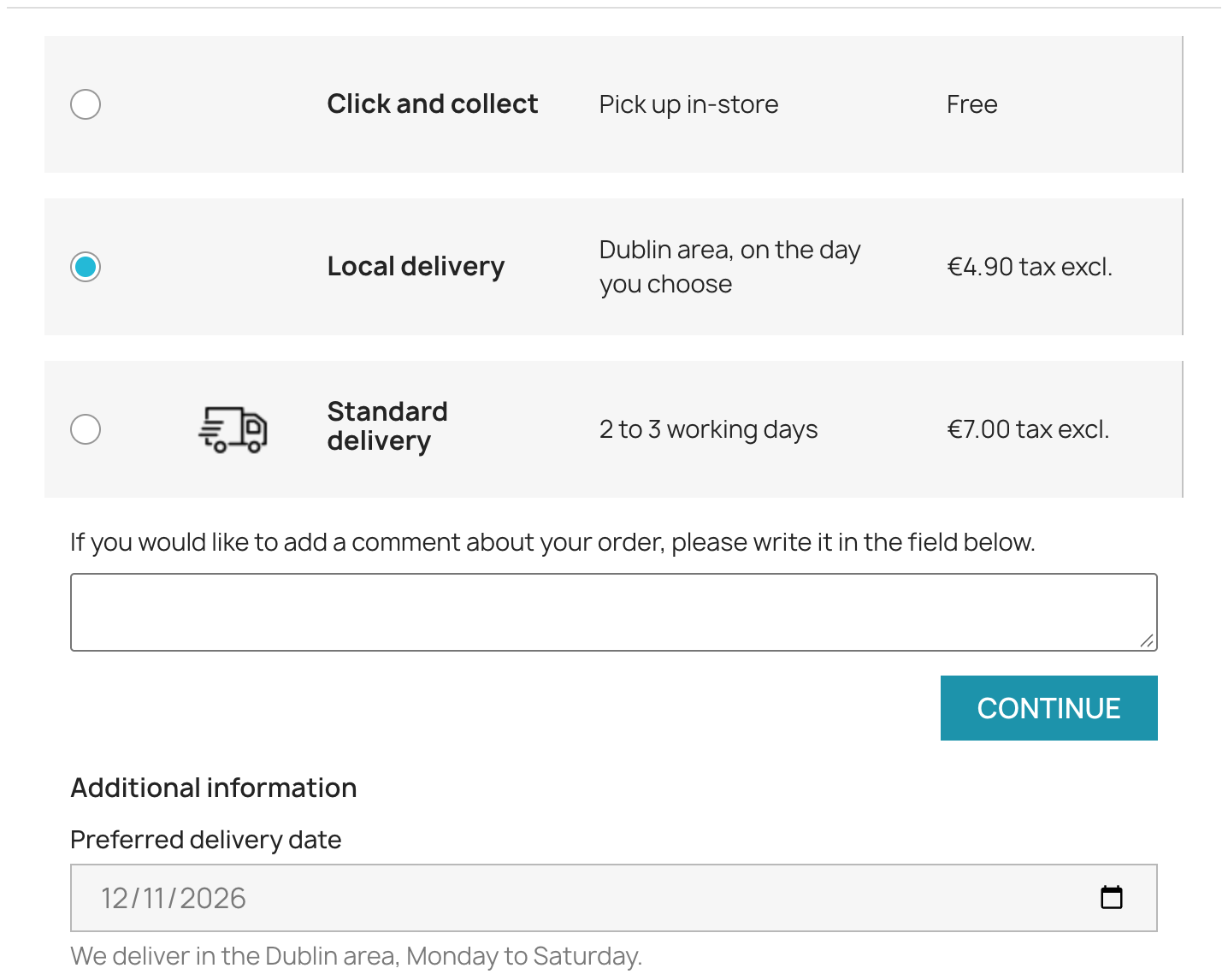
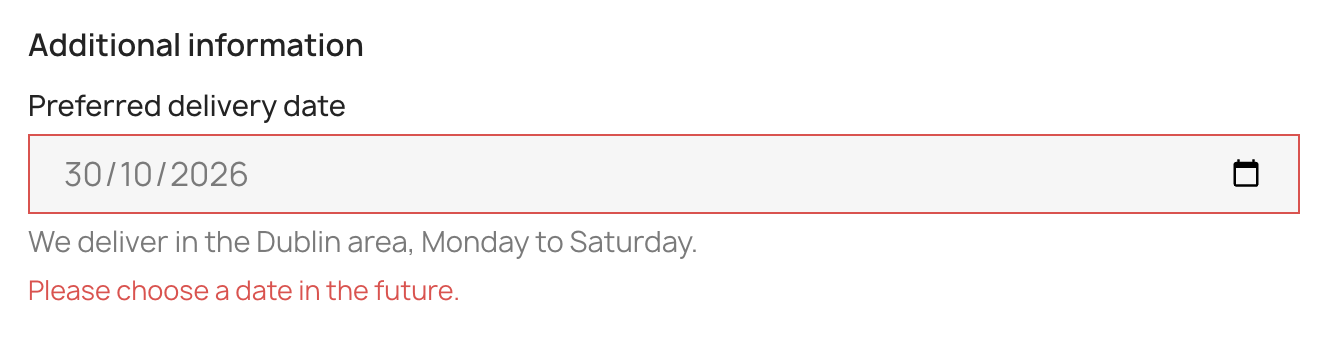
The customer picks the day in their browser’s calendar, which greys out past dates. A past date typed by hand is refused with a message, while today’s date is accepted:
5. The date on the order and the delivery slip
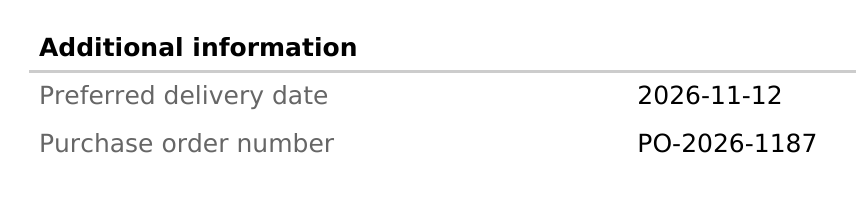
The date appears in the module’s block on the order page, in the emails sent to the customer and the merchant, and in the customer’s order history. With the Pro plan, it is also printed on the delivery slip, the sheet that goes with the preparation of the parcel:
No time slots or daily quotas
The Date field records a preferred day, with these limits:
- it accepts any date from today on, with no minimum preparation time and no closed day (Sundays, bank holidays)
- it handles neither time slots nor a maximum number of deliveries per day
- a Time field exists for a preferred time, without booking a slot
- the date shows as 2026-11-12 on the order, in the emails and on the delivery slip, whatever the shop’s language
Use the help text under the field to state your rules plainly, for example “delivery Tuesday to Saturday, two days after the order at the earliest”. The live demo shows the calendar in a real checkout before you install anything, and the documentation describes each setting of the field.
Key takeaways
- The PrestaShop checkout does not ask for a delivery date. The Pro plan of Easy Checkout Fields adds it with a Date field.
- “Today or later” refuses past dates, and a condition on the carrier keeps the calendar for the delivery made on a chosen day.
- The date appears on the order, in the emails and on the delivery slip, without time slots or quotas.
On the customisation side, a file sent by the customer is set up the same way, in the same form.