The PrestaShop checkout has no field to attach a file. The File upload field of Easy Checkout Fields (Pro plan, €2 a month) adds one: you choose the formats and the maximum size, the file's real content is checked, and the file is downloaded from the back-office order page.
A print shop waits for the file to print, an embroidery workshop for the logo to stitch. The PrestaShop checkout offers no field to attach a file, so the exchange happens by email afterwards, with the risk of matching a file to the wrong order.
The Easy Checkout Fields module, published by Gekkode, adds that field to the checkout. This guide sets the accepted formats and the maximum size, keeps the field for the products concerned and shows where to get the file, on a PrestaShop 9.1 test shop. The File field is part of the Pro plan (€2 a month or €19.20 a year).
Add a file upload to the PrestaShop checkout, step by step
1. A File type field
The module installs from its ZIP, as shown in our first Easy Checkout Fields tutorial. In Orders > Easy Checkout Fields, then create a field with New field, of type File upload. The label says what to send (“Your print file”), and the help text gives the accepted formats and size before the customer picks a file.
2. Choose the formats and the size
The Allowed extensions box lists the accepted formats, separated by commas. Without any setting, the module accepts pdf, jpg, jpeg, png, gif, doc, docx, txt and zip, up to 5 MB. For a print file, pdf, png and jpg are enough, with a 10 MB limit:
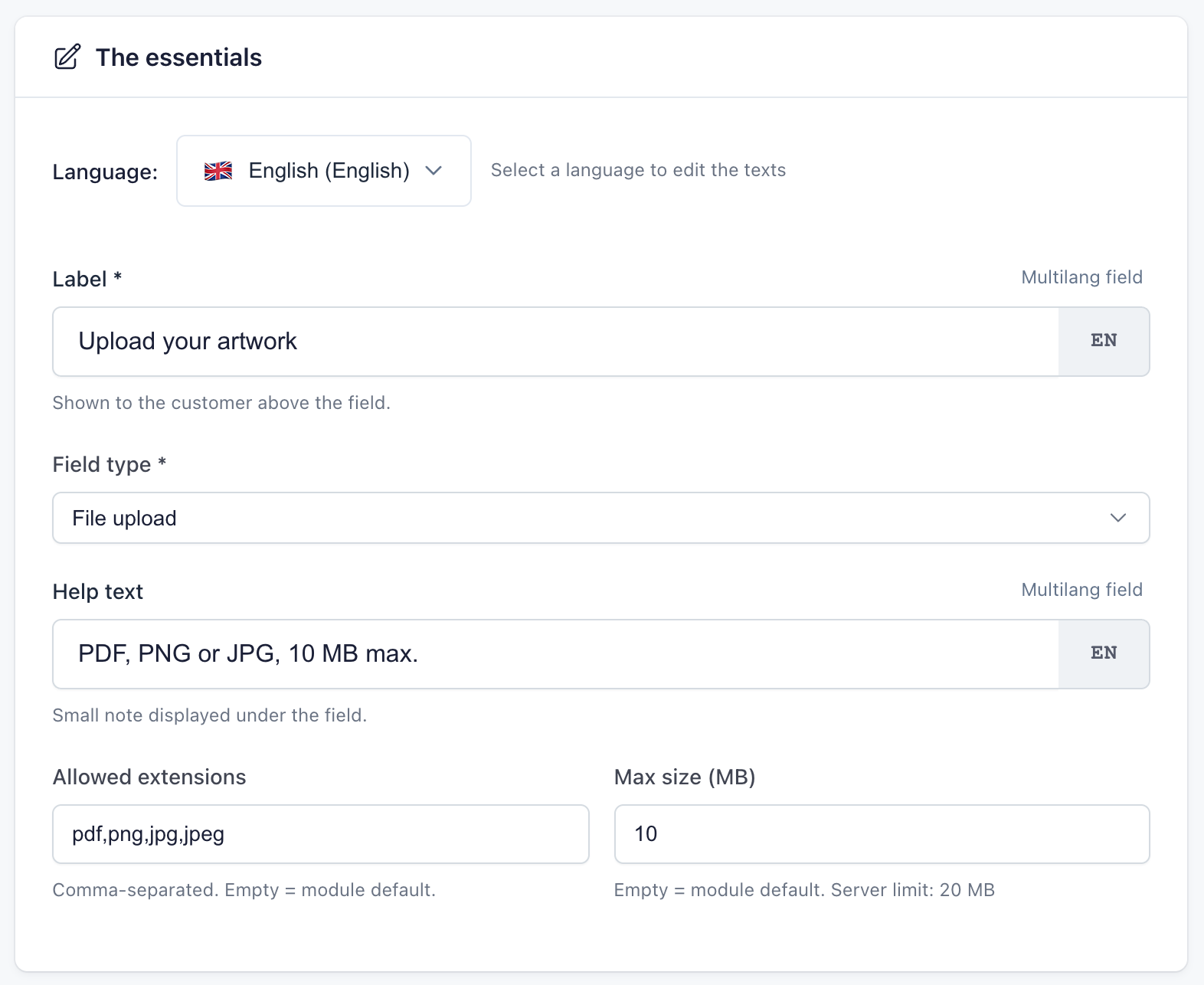
A field’s limit cannot exceed what your hosting accepts for an upload, a ceiling the form shows under the box (20 MB on the test shop). For a limit above 5 MB, also set the same value as the default size in the module’s Settings tab: that is the one the customer’s browser checks before sending.
Some types never get through, whatever the setting: scripts (php, js…), html pages and svg images, which can contain code. The module also checks the real content of the file, so a program renamed to .pdf is refused.
3. Keep it for the products concerned
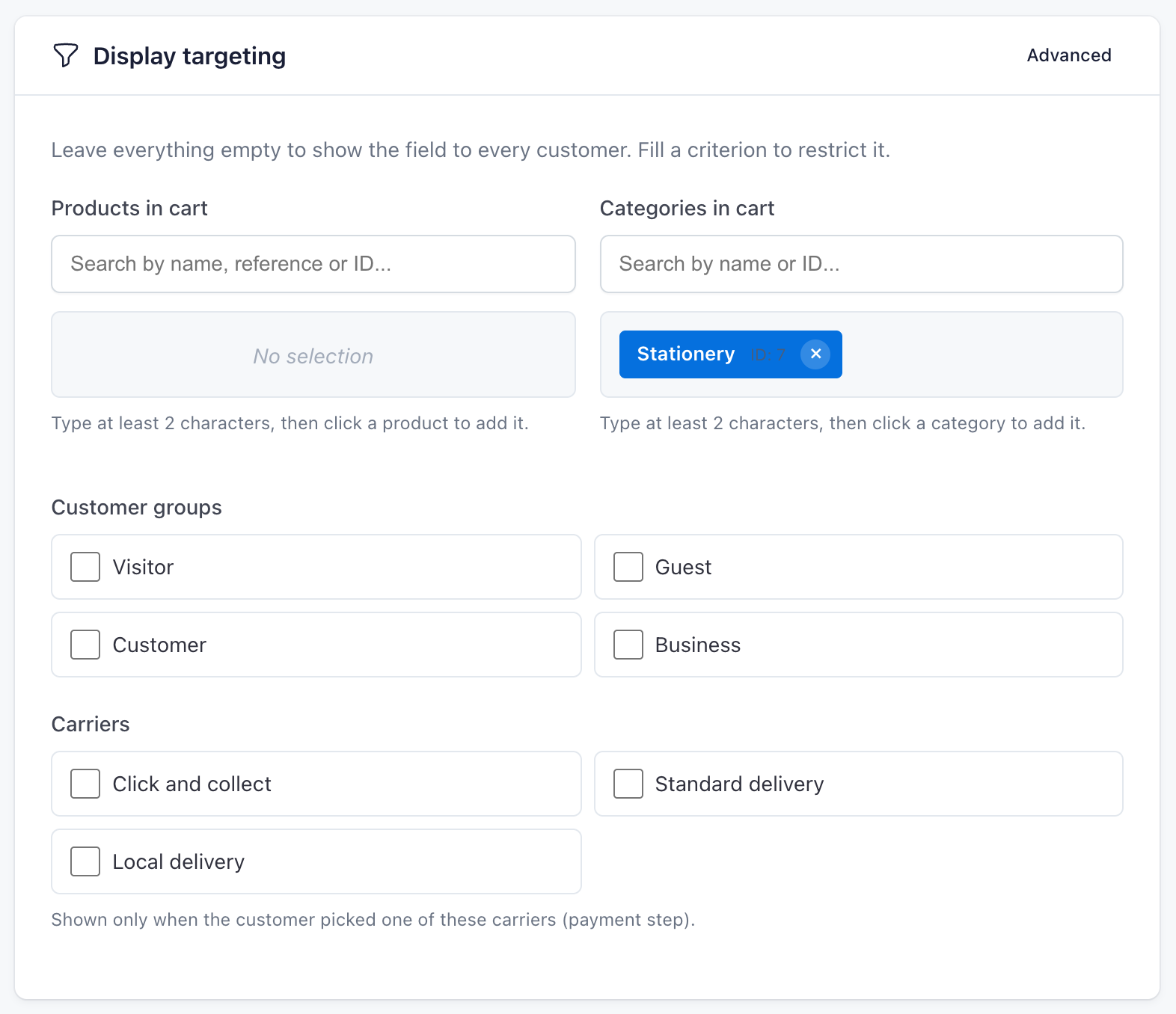
Not every customer has a file to send. In the Display targeting card, the Products in cart and Categories in cart lists keep the field for carts that contain a chosen product or category. Here, the Stationery category, home of the test shop’s notebooks with a custom cover: a cart with no product from that category does not show the field.
4. What the customer sees

The file is sent as soon as the customer picks it, before payment. A file in the wrong format or too heavy is refused before it is saved, and the customer can choose another one without losing the rest of the order. Each field takes one file.
5. Get the file
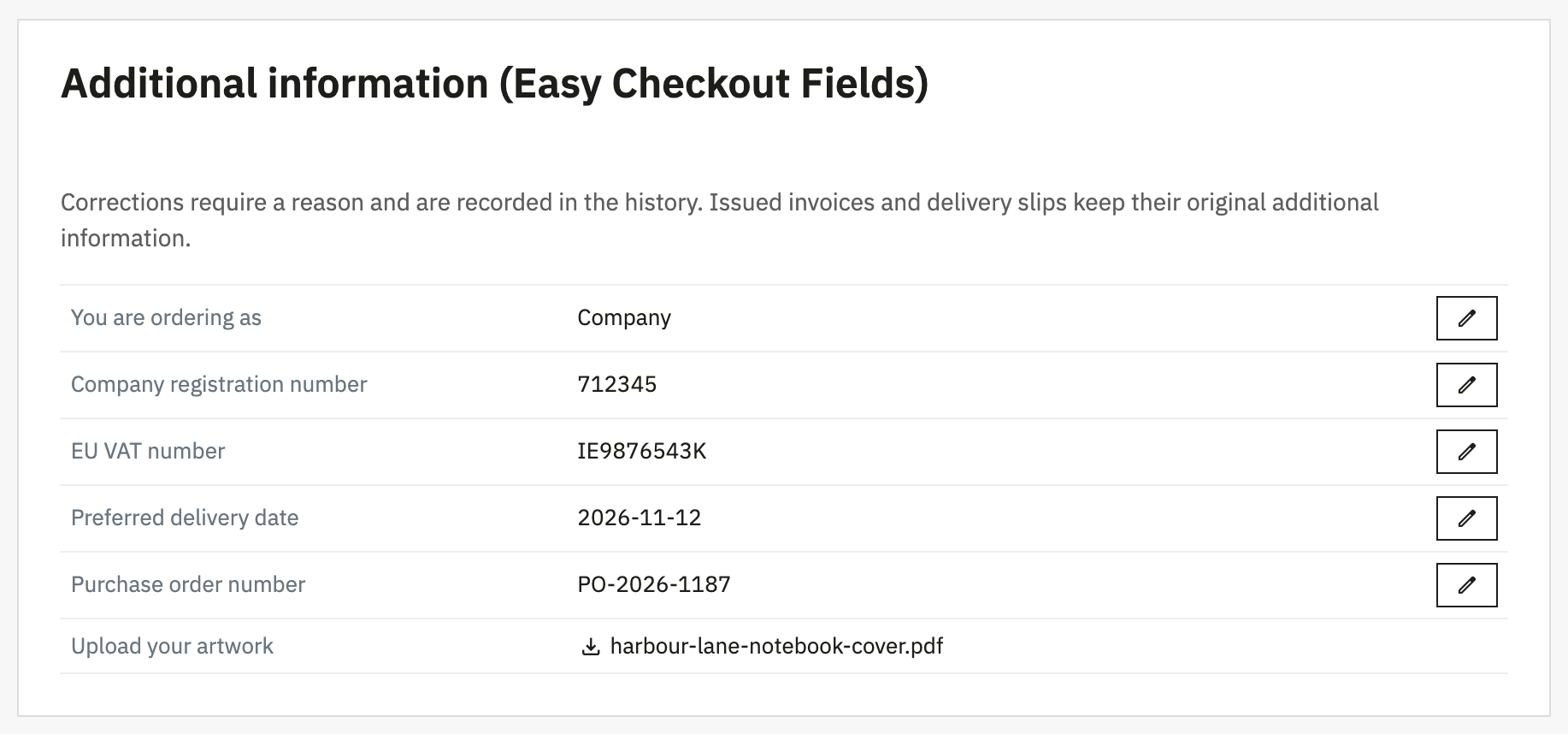
On the back-office order page, the answer shows the file name and a download link. The file is stored under a random name, in a folder closed to the public: a guessed address returns an error, and it can only be downloaded from the back office. Customers, for their part, find the name of their file in their confirmation and emails, without a link.
How long to keep the files
A logo, a photo or a drawing can contain personal data. The module offers two automatic clean-ups, on every plan. Files sent in a cart that was never ordered are deleted after the number of days you choose (30 by default), and the scheduled anonymisation erases those of orders older than the set delay, in months. The settings are described in the module documentation.
The File field and the module’s plans
File upload only exists in the Pro plan. The free plan of Easy Checkout Fields covers three text, list, yes/no or consent fields, useful for delivery instructions or a gift message, but not for receiving a file. The Pro plan unlocks the fourteen field types, display conditions, the PDF invoice and the CSV export: the module page compares both plans, and the live demo lets you try sending a file.
Key takeaways
- During checkout, PrestaShop does not let customers attach a file. The File upload field of Easy Checkout Fields fills that gap, in the Pro plan.
- You choose the formats and the maximum size. Scripts, html pages and svg images are always refused, and the real content of the file is checked.
- The file is downloaded from the back-office order page, and files from abandoned carts and old orders can be erased automatically.
A shop that delivers on a set day can add a preferred delivery date, also asked during checkout.